


Work log template
Track daily or weekly work hours, spot time-wasters, and build a simpler system to manage tasks, improve productivity, and take control of your day.
Sign up to create your own template.
Work log template
Track daily or weekly work hours, spot time-wasters, and build a simpler system to manage tasks, improve productivity, and take control of your day.
Create your templateSign up to create your own template.
INTEGRATED FEATURES
Recommended apps



What is a work log?
Losing track of time is a problem. It leads to missed deadlines and overwork. If you don’t know what’s causing the lost time, it can be hard to find a solution. That’s where work logs come in.
A work log records all your completed tasks, including how long each took. Work logs are arranged chronologically by time block, so you can quickly visualize the amount of time spent on your to-dos, from meetings to focus time. By showing you where you spend your time, work logs help you reclaim your day and work more effectively.
What is a work log template?
A work log template (also known as a time log template) is a template for tracking how you spend your work hours. You can pre-build work log templates with custom tags that describe your work, like whether a task is billable or non-billable, the task priority, the task status, and more.
Best of all, work log templates are duplicatable, so once you’ve built your first template, you can reuse it. Simply log in and get to work.
Create a work log templateWork log vs. timesheet
Work logs and timesheets both track time, but they answer different questions. A timesheet records how many hours someone worked, usually for payroll, attendance, or client billing. A work log records what you did during those hours: which tasks you worked on, how long each took, and what got in the way.
That difference adds up over a full day. According to the U.S. Bureau of Labor Statistics American Time Use Survey, full-time employed people worked an average of 8.1 hours on days they worked in 2025. A timesheet captures that total. A work log shows you where those hours actually went.
Read: Free timesheet template for any type of scheduleMany teams use both. The timesheet goes to payroll or finance, and the work log helps you spot time sinks, balance workloads, and plan future projects.
Benefits of a digital work log
Sure, you could keep track of your time with a worksheet, a printable timesheet, or an Excel sheet. It’s old-school, but it’s not effective. Printable time logs are limited to a pre-set format and often don’t reflect how you work. Excel templates are a bit more functional, but they lack flexibility and customization. Plus, do you really need another Excel spreadsheet in your life?
Digital work logs, by contrast, are customizable, dynamic, and easy to duplicate. They give you at-a-glance visibility into how you spend your time, with handy features like custom time blocks and color-coded priority status fields. Don’t lose more time by choosing a work log that works against you. Using a digital work log in a project management tool allows you to:
Keep track of how you're spending your time each day
Identify areas where you’re losing time and find ways to improve
Reduce work about work
Kickstart your productivity and efficiency
Weed out time wasters and low-value tasks
Pinpoint areas where you’re spending too much time
Bill your hours accurately
Increase project efficiency
Refine your workflows
Logging your time also shows how much of it goes to work about work. According to Asana's State of Work Innovation 2024 report, busywork like chasing status updates and searching for information takes up 53% of workers'time. A work log shows you exactly where that time goes, so you can start winning it back.
Create a work log templateHow to create your digital work log template
Now that you know what a digital work log template is and why you should use one, let’s dig into how to set one up to maximize productivity.
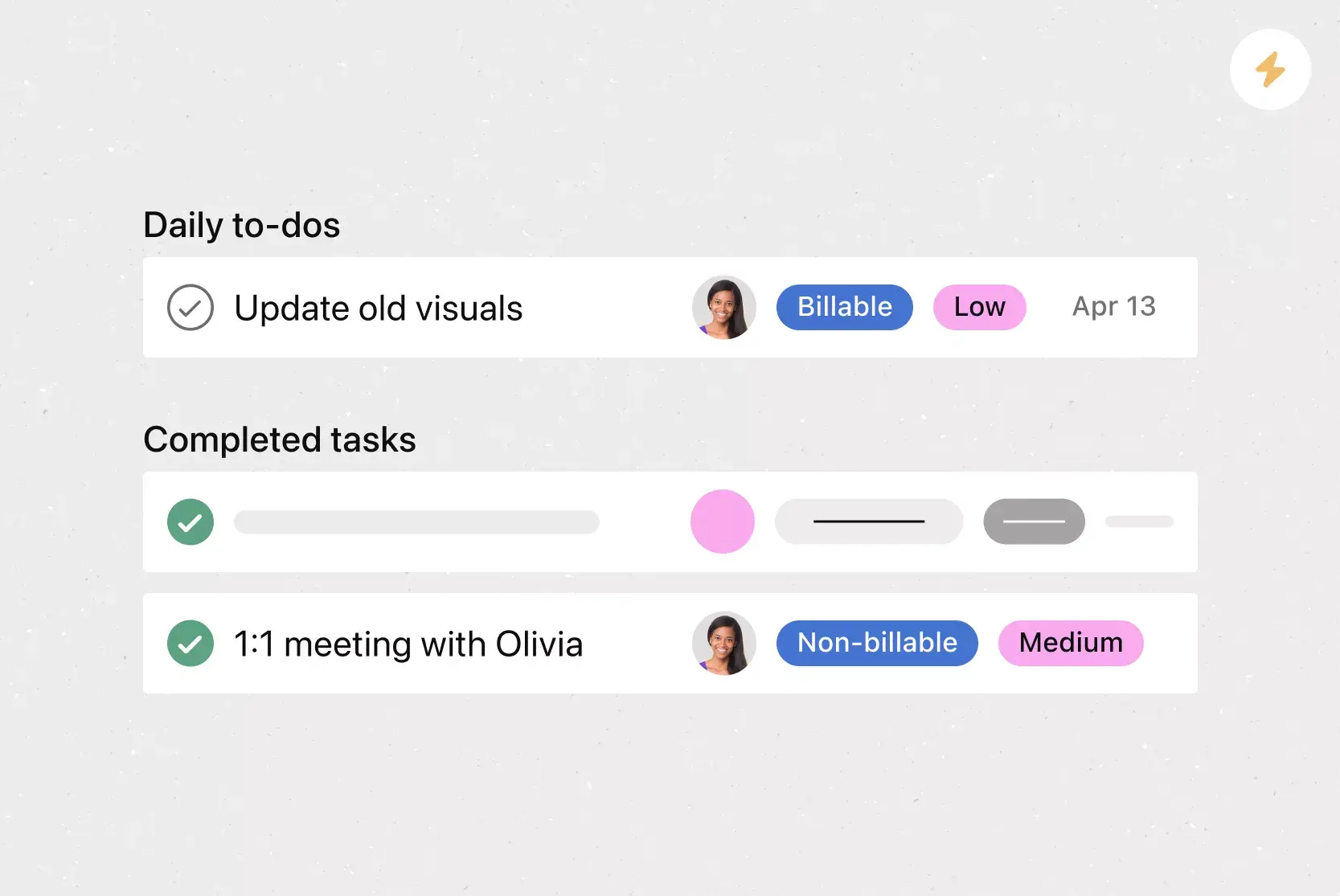
1. Start by adding all your tasks for the day at the top of your work log.
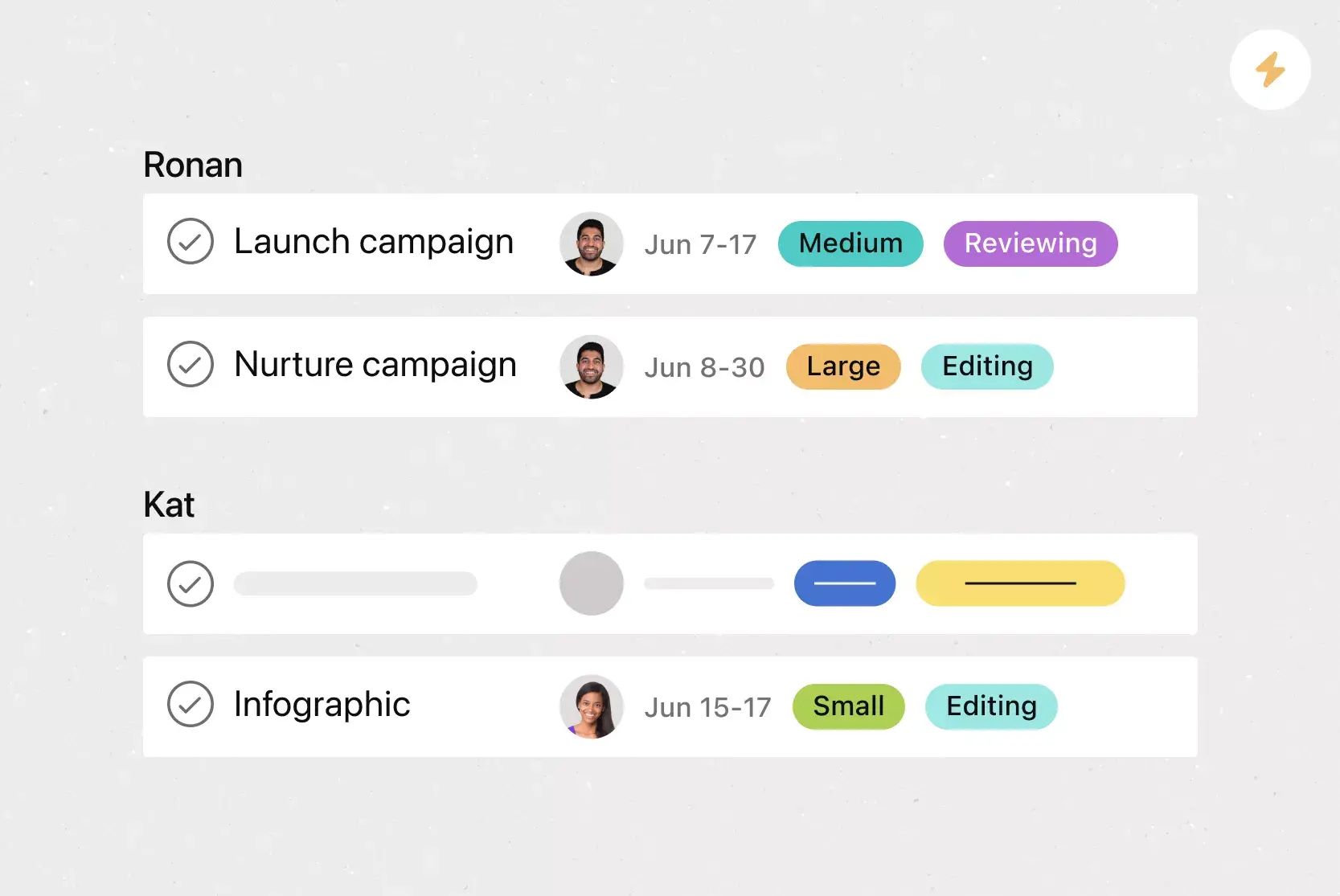
First, create a section for everything you plan to get done that day, including upcoming meetings, small tasks to knock out, and big to-dos. To better prioritize your work, add tags for priority, billing type, status, and effort.

2. Create a “completed tasks” section with time blocks for the day.
The “completed tasks” section is where you’ll keep track of your to-dos as you work on and complete them. It’ll start as a blank section and fill up throughout the day. Include time blocks — the time slots during which you complete tasks and accomplish work — in this section. We recommend breaking your day into one-hour or half-hour blocks and adjusting as you go.
3. Log your activities and tasks as you complete them.
As you complete the tasks in your daily to-dos section, log the task, including how long it took, in the completed tasks section of your work log. For example, if you start your day checking emails from 8am–9am, log “reviewed emails” in your completed tasks section in the 8am–9am time block. Don’t worry if your time spent doesn’t exactly match the time blocks you set up. Simply adjust as you work.
4. Track your personal time.
Don’t forget to log activities outside your daily work tasks, such as lunch, long coffee breaks, or personal appointments. There’s nothing wrong with decompressing after a long stretch of focus time, and logging these breaks will give you a more accurate idea of how you’re spending your day.
5. Review your completed (or incomplete) tasks.
Before you sign off for the day, review what you’ve completed and what (if anything) fell behind schedule. If you have incomplete tasks in your daily to-dos section, jot down why you may not have had time to get to them. Did you have unexpected tasks or meetings pop up? Did an assignment take longer than you thought it would (and if so, what caused the time difference)? When or why did you feel blocked? Your answers will help paint a clearer picture when it's time to review your work log.
6. Analyze your performance and brainstorm ways to improve.
Finally, set a cadence to review your completed work logs, like at the end of each week or month. Look for patterns and time-sucks. For example, are you wasting time in long meetings? Do you spend hours each day checking and responding to emails? Do you procrastinate on certain tasks? Use your findings to brainstorm ways to improve, such as:
Eliminating or automating unimportant tasks
Delegating time wasters
Using time management techniques to focus on and accomplish your most important work
What to include in your digital work log template
Time logging is more than simply tracking how long tasks take. A work log template can help you understand where and why you lose time and give you insights into how to manage your work better. To create an effective work log template, add custom fields that give context to your work and provide an at-a-glance overview of how you’re spending your time, including:
Your activities and daily tasks
Time blocks
Task billing type
Task priority
Time each task took
Date, start time, and end time
Project or client
Task status
Notes on blockers and next steps
Estimated time versus actual time
Types of work logs
Most work logs fall into one of four types. Pick the one that matches how often you need to review your time.
Daily work log: Records each task, its time block, and its status as you go. Best for individual contributors who want an hour-by-hour picture of their day.
Weekly work log: Rolls up tasks and total hours by day across the week. Useful for part-time staff, contractors, and teams that report progress weekly.
Monthly work log: Summarizes time by project or task type over a month, which helps managers review trends and plan capacity.
Project work log: Tracks time and activity for a single project, including milestones and blockers, so you can compare estimated time with actual time when scoping similar work.
Work log example
Here's what a completed daily work log might look like for a marketing coordinator:
Time block | Task | Billing type | Priority | Time spent | Status | Notes |
|---|---|---|---|---|---|---|
8:00–9:00 am | Reviewed and answered emails | Non-billable | Low | 1 hr | Complete | Took longer than planned. Batch emails tomorrow. |
9:00–11:00 am | Drafted client campaign brief | Billable | High | 2 hrs | Complete | |
11:00–11:30 am | Team standup | Non-billable | Medium | 30 min | Complete | Ran 10 minutes over |
12:00–12:30 pm | Lunch | Personal | N/A | 30 min | N/A | |
1:00–2:30 pm | Revised landing page copy | Billable | High | 1.5 hrs | In progress | Waiting on design feedback |
At the end of the day, this log shows 3.5 billable hours, 1.5 non-billable hours, and one task to carry over to tomorrow.
Integrated features
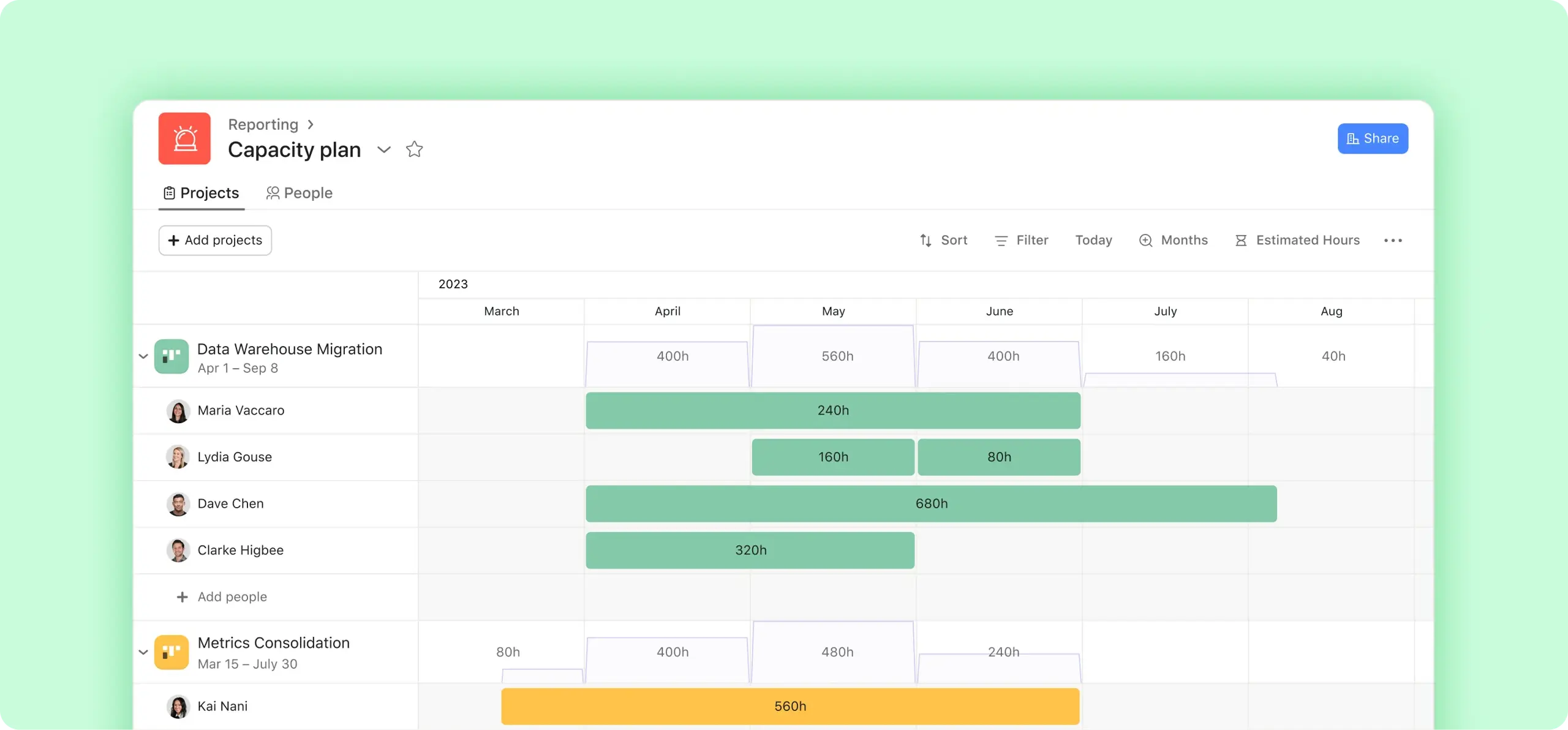
Workload. Workload gives you a visual snapshot of team capacity, making it easy to see what your team members are working on across projects in one place. With this at-a-glance information, you can pinpoint conflicts, address risks, and keep projects on track by reassigning or rescheduling tasks. Check Workload regularly to make sure team members aren’t overwhelmed or underworked. If they are, you can easily reassign or reschedule low-priority tasks to unblock high-priority initiatives.
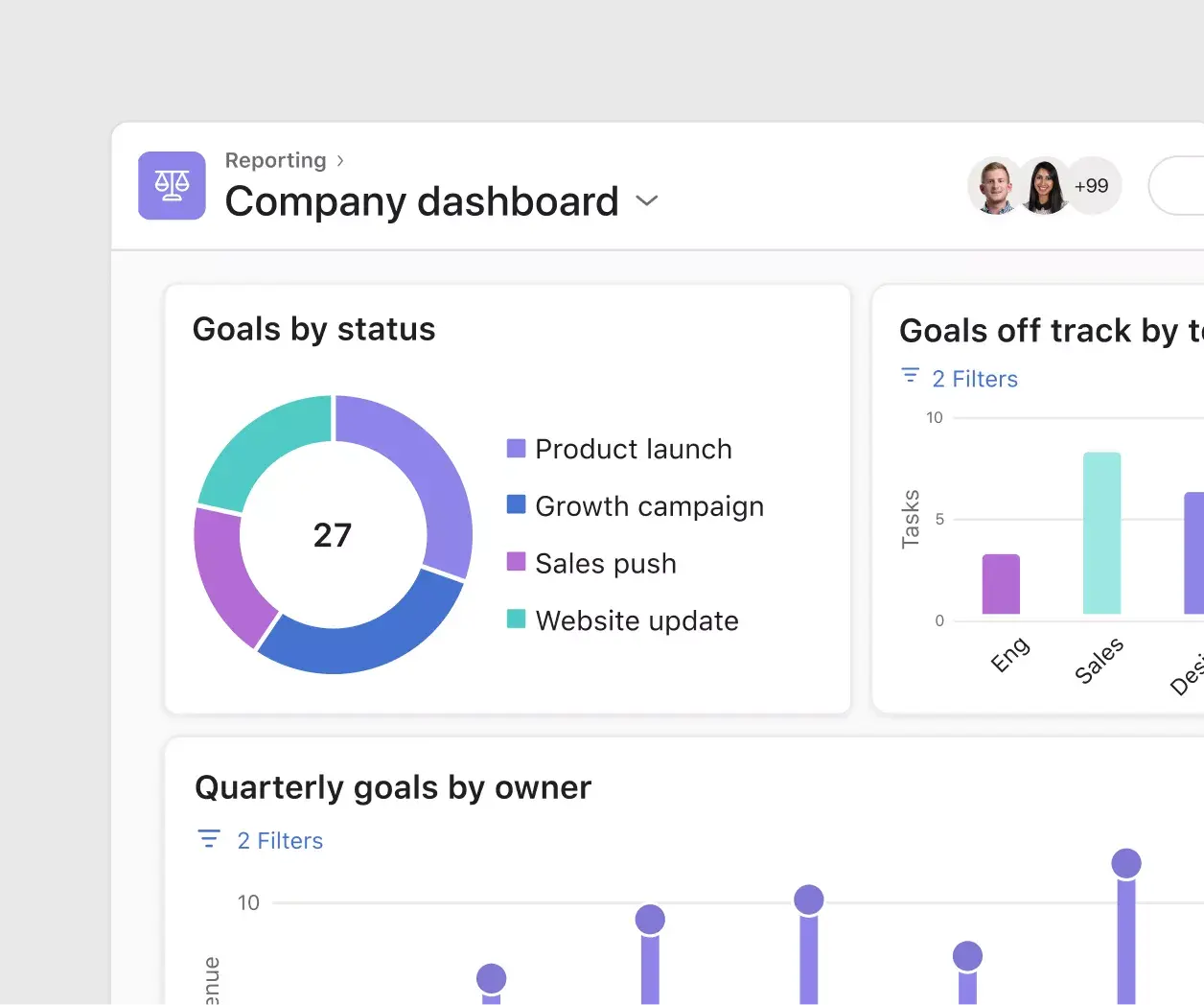
Dashboards. Dashboards are project-level tabs with graphs and visualizations that let you zoom out from day-to-day work to quickly understand your project’s progress. Customize Dashboard charts so you can instantly identify potential blockers in your team’s work and subsequently move the project forward. Use the Dashboard tab as a reference point to quickly gauge how the project is progressing.
Custom fields. Custom fields are the best way to tag, sort, and filter work. Create unique custom fields for any information you need to track, from priority and status to email or phone number. Use custom fields to sort and schedule your to-dos so you know what to work on first. Plus, share custom fields across tasks and projects to keep your organization consistent.
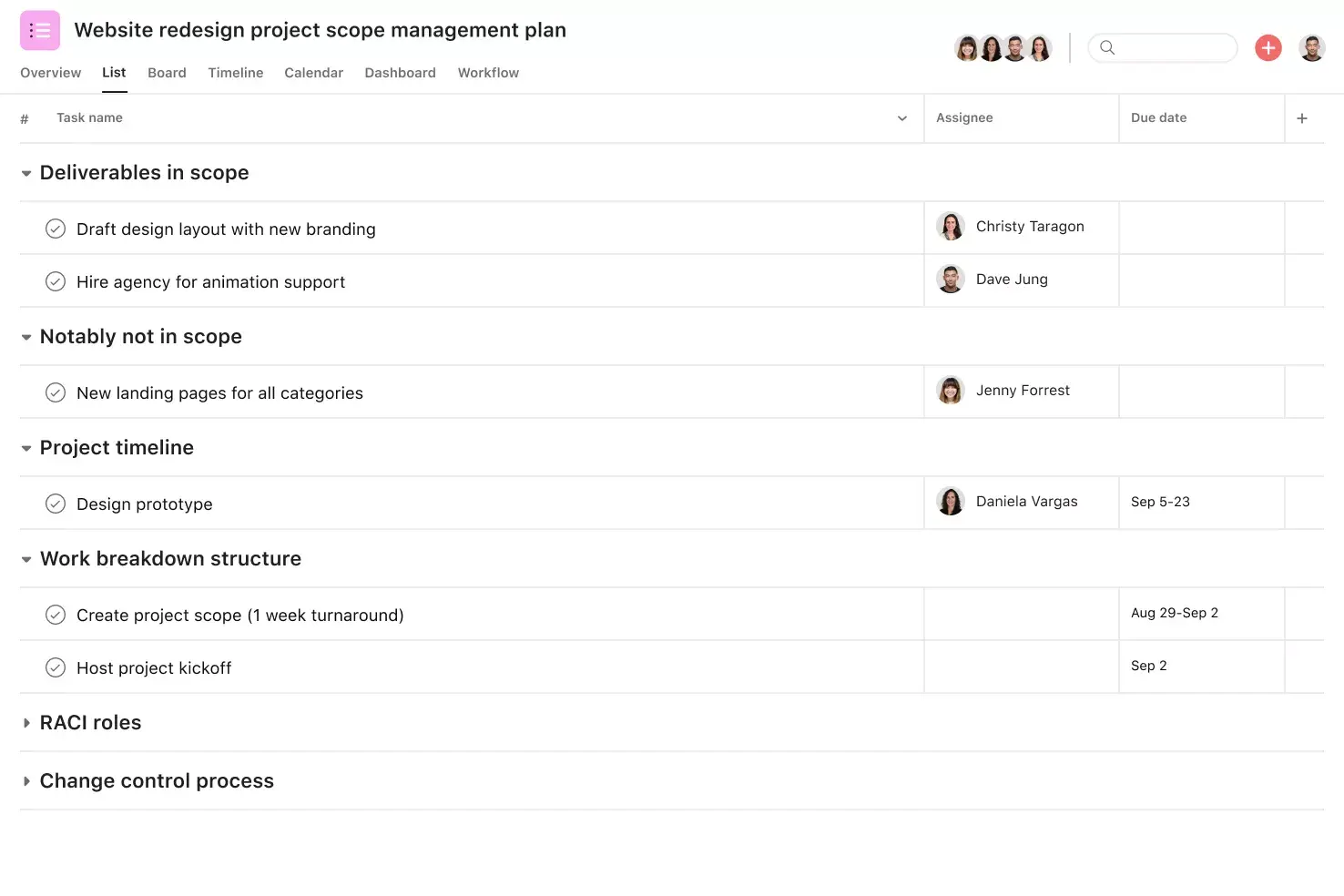
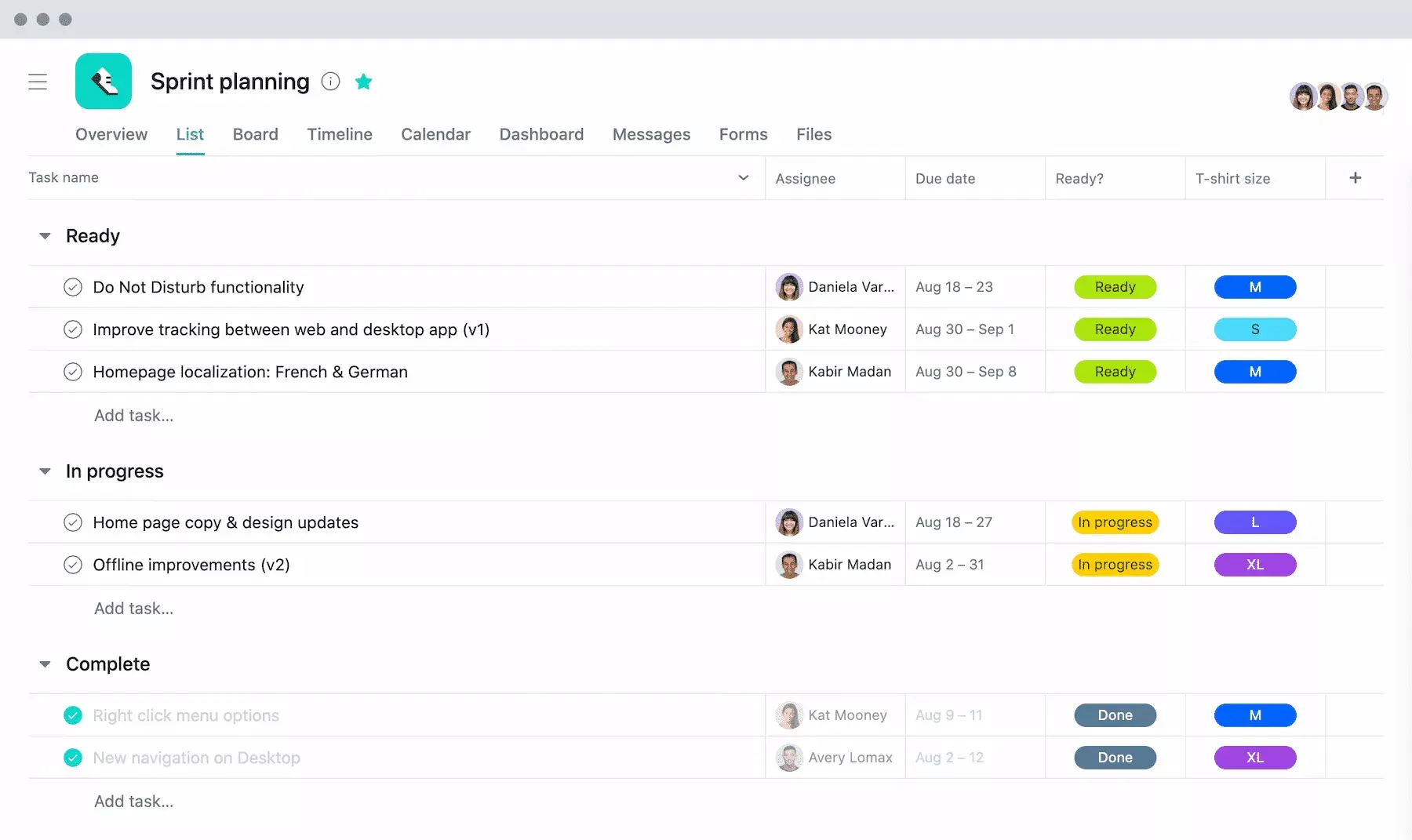
List View. List View is a grid-style view that lets you see all your project information at a glance. Like a to-do list or a spreadsheet, List View displays all your tasks at once, so you can see task titles and due dates, plus any relevant custom fields like Priority, Status, and more. Unlock effortless collaboration by giving your entire team visibility into who’s doing what by when.
Time tracking. Time tracking measures how long work actually takes. Record an estimate for each task, then use the embedded timer or enter time manually. Open a detailed log to see who tracked time on a task and when, and to compare estimated versus actual time to keep projects on track.
Recommended apps
TrackingTime. With the TrackingTime + Asana integration, you can start and stop a timer right from an Asana task. When you start tracking a new task, TrackingTime adds it to your account along with its project, so your logged time stays connected to the work in Asana.
Google Workspace. Attach files directly to tasks in Asana with the Google Workspace file chooser, which is built into the Asana task pane. Easily attach any My Drive file with just a few clicks.
Dropbox. Attach files directly to tasks in Asana with the Dropbox file chooser, which is built into the Asana task pane.
Box. Attach files directly to tasks in Asana with the Box file picker, which is built into the Asana task pane.
Take control of your time with Asana
A work log template is one of the simplest ways to understand how you spend your time and find opportunities to work more effectively. Whether you're tracking billable hours, managing a busy team, or simply trying to cut down on busywork, a digital work log gives you the visibility you need to make smarter decisions about your day.
Get started with Asana and see how easy it is to track, manage, and improve the way your team works.
Create a work log templateFAQs about work log templates
If you’ve ever logged off after a full day of work and wondered where all your time went, digital work logs are for you. By giving you a complete, real-time picture of how you spend your day, digital work log templates improve your time management and boost your productivity. Plus, reusable digital work log templates simplify time tracking. If you’re a manager, timesheet templates are also a great way to keep track of your employee’s time, making it easy to see how to improve workflows.
While work log templates are especially useful for roles that require time tracking, like client-facing roles with billable and non-billable hours, they’re also a great tool even if you don’t need to track how you spend your time. No matter your role, it can be hard to remember exactly how you spent the last few hours (never mind the last few days). Work log templates help you track where your time actually goes (not where you think it goes), giving you a clear view of how you spend it and where you lose it.
It’s easy to lose track of time at work. Between shifting priorities, last-minute assignments, and impromptu meetings, what we plan to do in a day and what we actually get done often differ. Accurate time tracking shows how you spend your workday, so you can identify tasks to delegate, eliminate, or streamline. Time tracking also helps you create better time estimates so you can scope upcoming projects accurately.
Creating a work log template is easy. Start by creating two sections: a daily to-dos section and a completed tasks section. Then add custom fields to track how long each task took and add context, such as time blocks, task billing type, and task priority. Once you’ve created your template, you can duplicate it for easy, continuous tracking.
Add the tasks you plan to complete today to your daily to-dos section, then move them to the completed tasks section as you work on or finish them. As you move them into the completed section, fill in the start time and end time for each task, and note how much time you spent. As you go, keep notes on why tasks took longer than expected or where you ran into roadblocks.
To analyze your time, start by setting aside time to review your work log at the end of each week. Sort your tasks by time spent to see which tasks took the longest and whether you notice any patterns. Are certain types of tasks taking the longest? Do you spend too much time preparing a meeting agenda and sending follow-up emails? Once you have a clearer idea of how you spend your time, you can use time management strategies to prioritize tasks and manage your time more effectively.
A timesheet records how many hours you worked, usually for payroll, attendance, or client billing. A work log records what you did during those hours, including each task, how long it took, and any blockers. Many teams use both: timesheets for pay and billing, and work logs to improve how time gets spent.
Update your work log as you finish each task, or at least at the end of every time block. Logging in real time is more accurate than rebuilding your day from memory. Then review your entries weekly or monthly to spot patterns, like recurring meetings that run long or tasks that regularly take longer than estimated.
Related templates









Create templates with Asana
Learn how to create a customizable template in Asana. Get started today.