


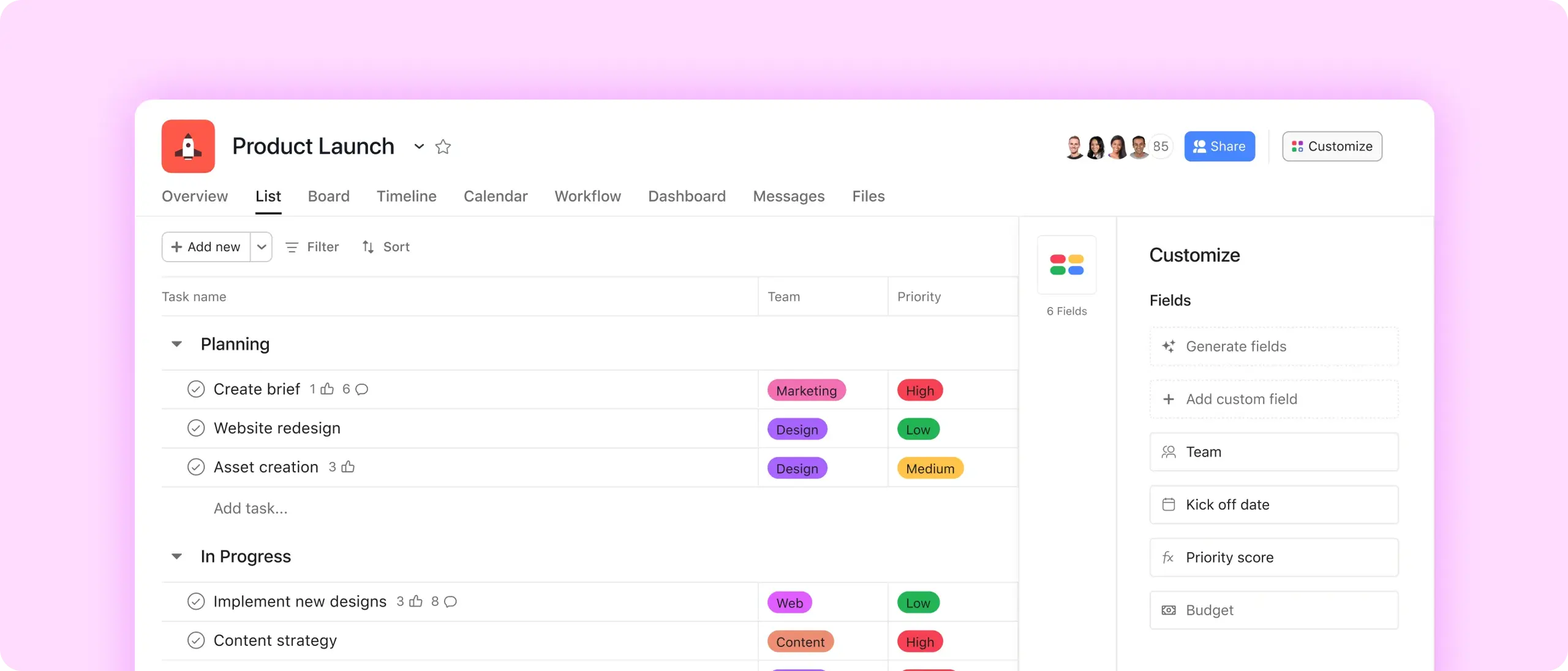
Capture the right data
Tag tasks by priority, status, or anything else that’s important to your team.
Drive consistency
Reuse custom fields across your organization, so everyone reports work the same way.
Trust your processes
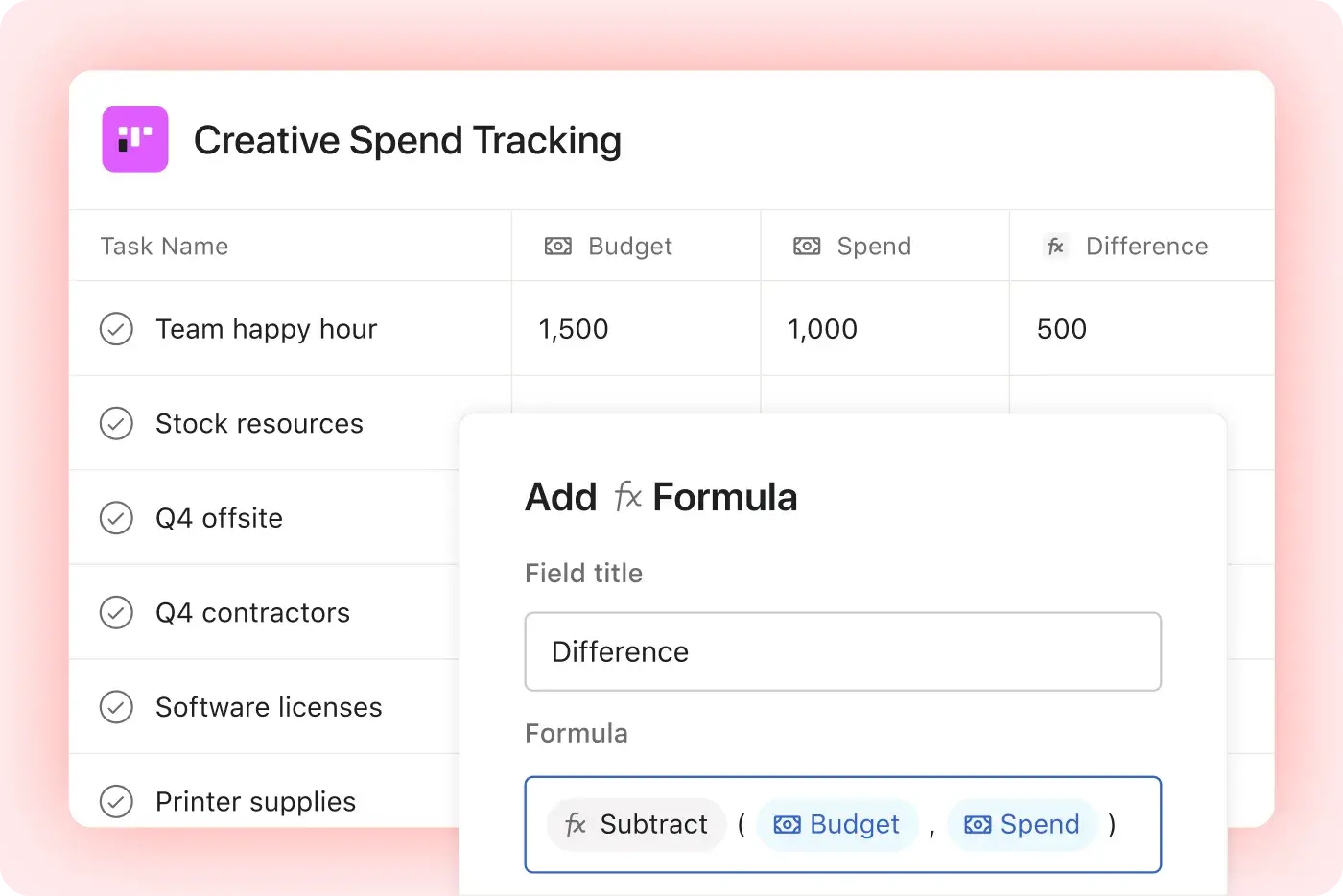
Make reliable calculations and design your own automations based on custom fields.
Track any kind of information
Sort work your way
Decide how to track work, then create custom fields to match.
Track anything
Choose between different field types, like dates, people, text, or numbers.
Make it scannable
Use color coding to help team members understand the status of work at a glance.

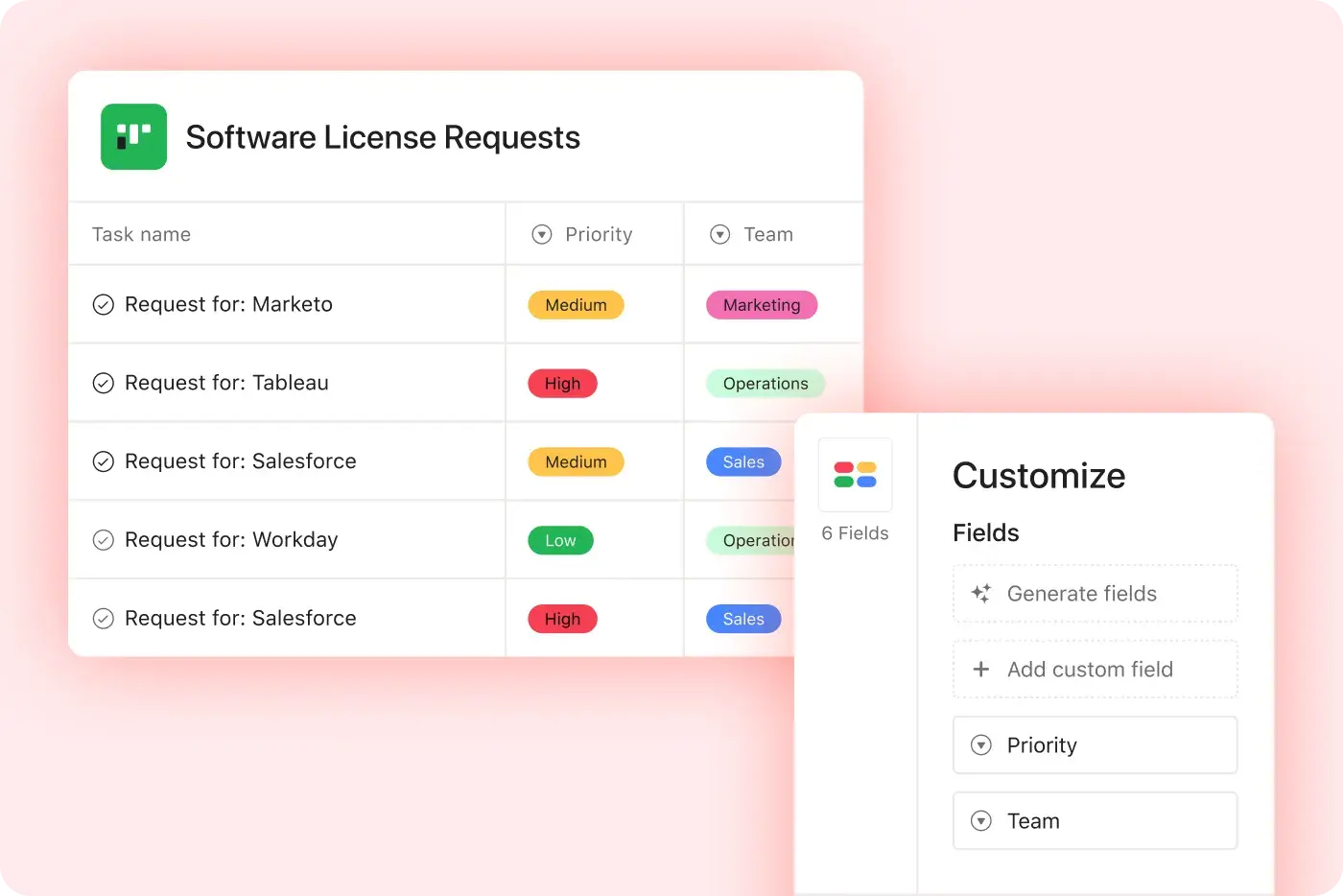
Improve the reliability of your data
Find it fast
Filter projects by custom fields to easily sort and find what you’re looking for.
Analyze your numbers
Run calculations on project data, such as time spent or available budget, to generate actionable insights.
Narrow down reporting
Pull reports based on custom fields to track the details you care about.
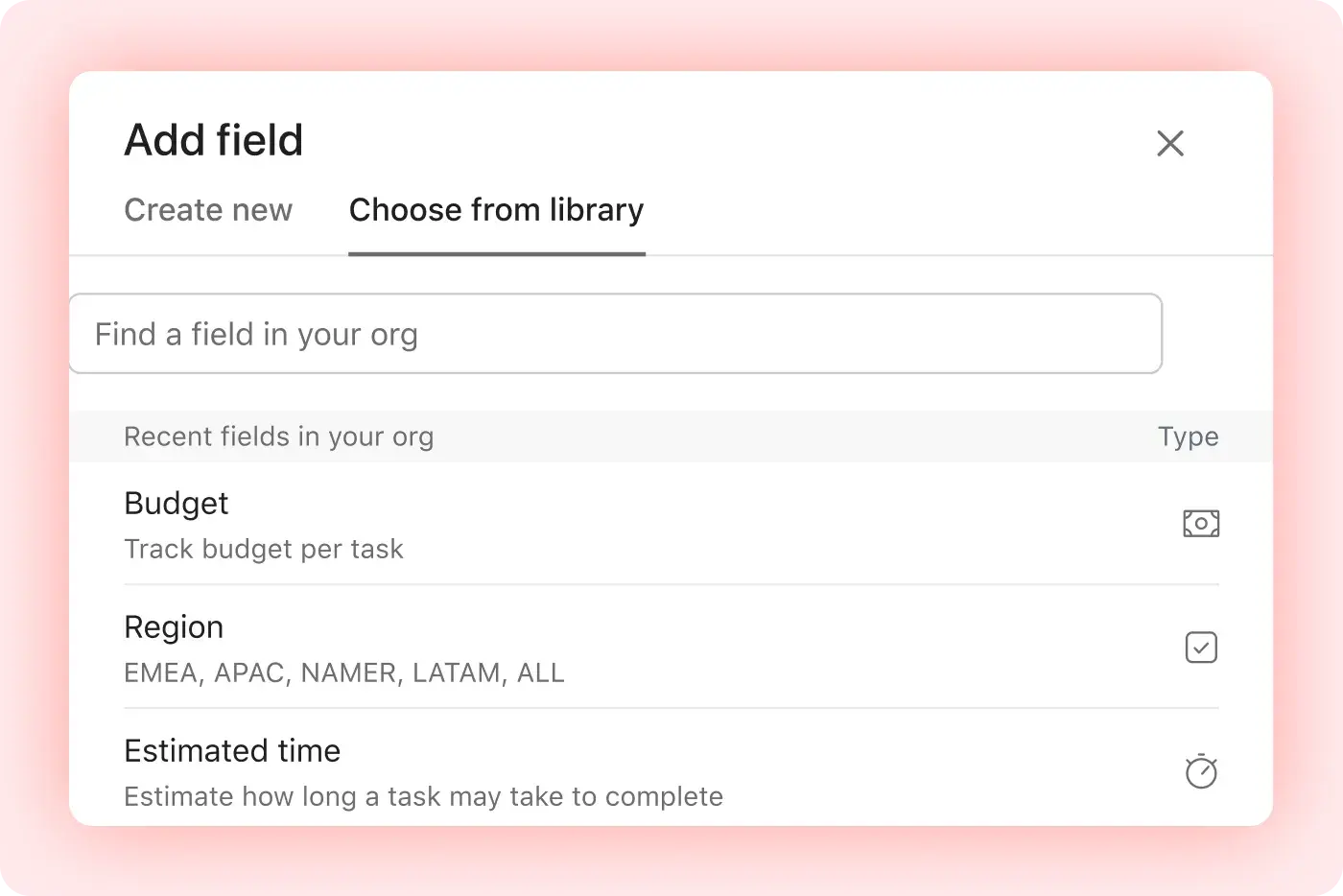
Standardize tracking across the business
Share far and wide
Use custom fields for a single project, or add them to your company-wide library.
Manage permissions
Maintain consistency by choosing who can make edits.
Build your automation engine
Custom fields are just the start. Put these features together to track, assign, and kick off work with a few clicks.
Still have questions? We have answers.
Custom fields are available on Asana's Starter, Advanced, Enterprise, and Enterprise Plus plans. They are not available on the free plan. Learn about pricing, or try Asana Advanced for free, no credit card required.
Yes, you can. Add any custom field to your organization’s field library, so your team can reuse it again and again. If you don’t want other people to edit your custom field, lock it so nobody but you can make changes.
Yes, you can. Just opt out of adding a custom field to your organization's library. That means you can use the field in your project or portfolio, but not across your organization.
The types of custom fields you can create in Asana include text, number, date, single select, multi select, people, and formula fields. Formula fields are number-type and read-only, used for calculations.
You can reuse custom fields across projects or teams by saving fields to your organization's custom field library for reuse. You can also lock fields to prevent unwanted edits.
You can create a custom field visible only in one project by not saving the field to the shared library. If you do not save the field to the shared library, it will only be visible in the specific project or portfolio where it was created.
You can add up to 100 custom fields per project in Asana.
To remove a custom field from one project without deleting it everywhere, select "Remove from project" to detach it locally. If you choose "Delete," it will be removed from all projects and cannot be undone.
You can hide or lock custom fields from certain users by locking custom fields in the library so only selected users can edit them. You can also use local fields in private projects for sensitive information. Additionally, you can manage permissions for custom fields to control who can edit them.
Custom fields will appear in My Tasks view. Global custom fields can be added to the My Tasks view using the Customize menu.
Portfolio-level custom fields are not visible on tasks. Portfolio-level fields apply to projects only and are not shown at the task level. They are only visible in the portfolio grid view.
To manage your organization's custom fields, use the custom field library to view, edit, lock, and delete fields.
You can use custom fields for reporting or calculations. Custom fields can be used in dashboards, workload views, and portfolio summaries. Formula fields enable real-time calculations.
To color-code custom field values, use single-select or multi-select fields and assign colors to each value. This helps visually organize work in list, board, or calendar views.
You can access custom fields via the Asana API. Custom fields are accessible via the Asana API at the task, project, portfolio, and workspace levels. Metadata and display values are included.
Transform the way you work with Asana
Start your free trial
Try Asana for free. No credit card required.
Watch the demo
See how Asana connects companies at scale.
Speak with a sales rep
Learn how Asana helps teams collaborate seamlessly.