


Editorial content calendar template
Organize content, assign task owners, and track deadlines in one place to coordinate your team and publish on time.
Sign up to use this template.
Editorial content calendar template
Organize content, assign task owners, and track deadlines in one place to coordinate your team and publish on time.
Use templateSign up to use this template.
INTEGRATED FEATURES
Recommended apps




Summary
The Asana editorial calendar template helps your team plan what to publish and track the required work. Consolidate articles, emails, videos, newsletters, and related assets in one project so writers, editors, and reviewers can view their responsibilities and deadlines.
You’ll learn how editorial and content calendars differ, how to plan a publishing year, and how to transform your plan into assignments. A completed example of an editorial calendar and copyable fields will help you get started.
Planning next year’s editorial calendar? Watch this video to organize your ideas and build a 12-month plan. For a practical example, see how Autodesk manages its editorial calendar with Asana.
What is an editorial calendar?
An editorial calendar is a plan for what your team will publish, when it will go live, and where it will appear. It usually includes themes, content types, publishing dates, and the person responsible for each piece.
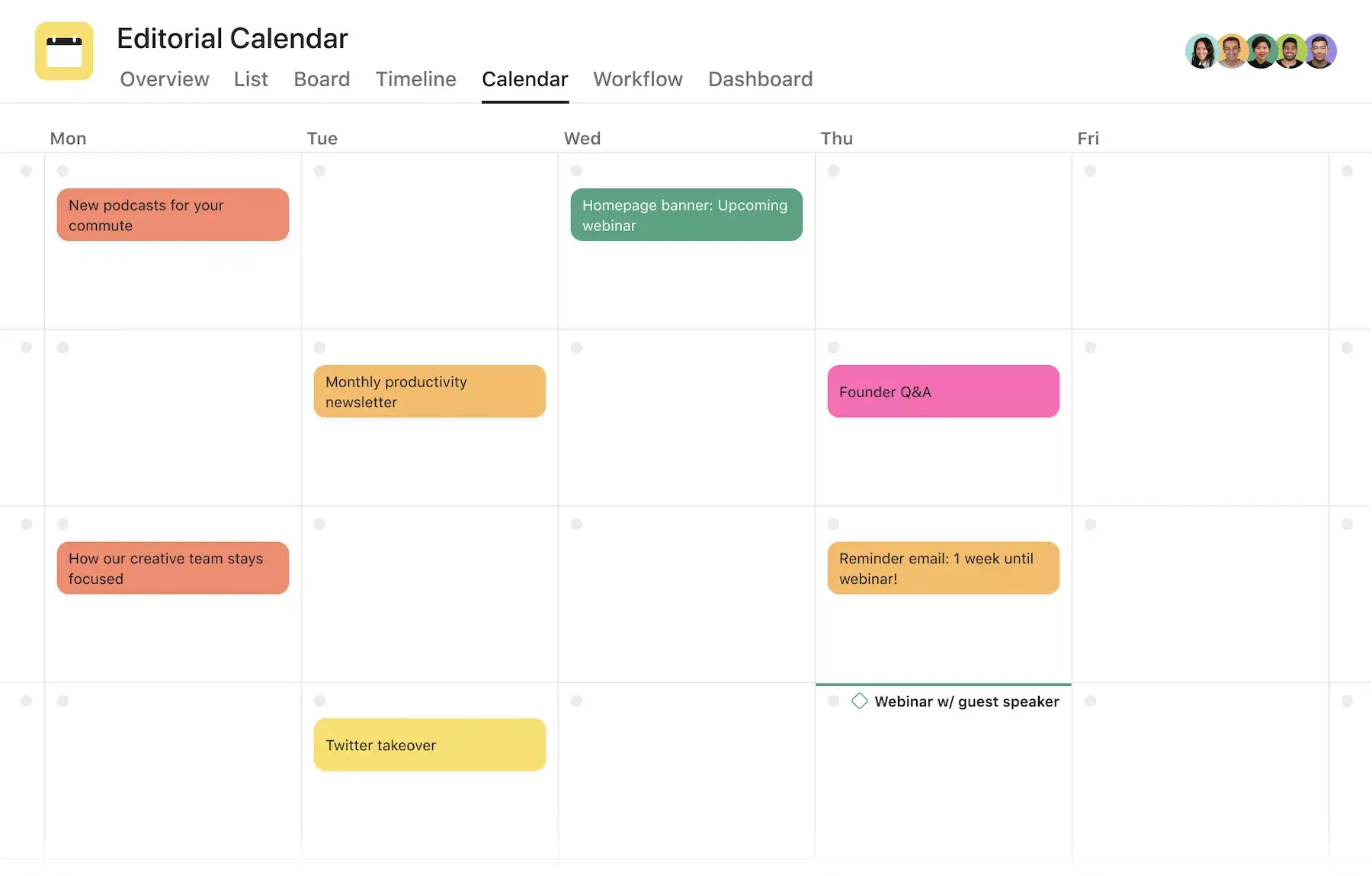
An editorial calendar helps you manage your content strategy by showing what’s planned and where you need more coverage. Key advantages include:
Content mix visibility: See at a glance whether you have the right balance of evergreen and timely pieces in your pipeline.
Holiday and event planning: Prepare stories around important dates, with time for reporting, drafting, and review.
Publishing coordination: Track due dates and assignees so your team can spot delays and adjust the schedule.
Editorial calendar vs content calendar
Teams often use “editorial calendar” and “content calendar” interchangeably. When they distinguish between them, the difference is usually planning versus production:
Focus: An editorial calendar sets themes and coverage priorities. A content calendar tracks the assignments needed to deliver them.
Timeline: Editorial planning often looks across a quarter or year. Production planning adds detail for the coming weeks and months.
Typical details: Editorial plans include campaigns, topics, and messages. Production calendars include article titles, owners, draft and review deadlines, and publishing dates.
You can manage both in one Asana project by keeping themes, tasks, owners, and dates for each story. When selecting content calendar software, choose a tool that supports both planning and daily production.
What is an editorial calendar template?
The Asana editorial calendar template is a reusable project for planning and tracking content. Begin by creating a task for each article or asset, assign an owner, and set a publishing date. Include these details with each assignment:
The story or assignment and its owner.
The publishing date, recorded as the main task’s due date.
Drafting and review deadlines, recorded on subtasks.
The primary channel and content type.
The current stage, such as drafting, in review, or ready to publish.
Links to the brief, draft, and related assets.
Editorial calendar example: Planning a year of editorial content

Imagine a general-interest publication planning next year’s coverage in late 2026. In this example team, Elena Brooks is the editor, Maya Chen and Leo Martin write, Priya Shah reviews copy, and Marcus Reed creates visuals.
Elena begins each month with one main or anchor story. As publication dates near, the team adds more assignments as stories are commissioned and reported. Select a publishing frequency that matches your team’s capacity.
Plan themes and stories for the year
Elena groups the year into quarterly priorities, then assigns monthly themes and anchor stories. The first quarter moves from small-space living to affordable food and spring resets. Later themes leave room for seasonal coverage and stories that emerge during the year.
Asana’s own content team assigns one owner to each story before expanding it into different formats. That person defines the message and keeps it consistent as other contributors develop related assets. In its documented workflow, AI also helps review incoming ideas and route approved work into teams’ projects. That AI-assisted workflow requires its own setup and plan.
"The goal is to create a strong content engine meant to be visible and used by all of our cross-functional teams," says Steph Bui, Asana’s content marketing strategy lead. “By having this content engine approach, we've tripled our output and really expanded our reach.”
Here’s the team’s annual editorial plan. The dates are publishing dates for the anchor stories; additional monthly coverage is planned closer to publication.
Month | Theme | Anchor story | Owner | Publish date |
January | Small-space living | Make room for everyday life | Maya Chen | Jan 12 |
February | Food on a budget | Cook well for less | Leo Martin | Feb 9 |
March | Spring resets | A room-by-room spring reset | Maya Chen | Mar 9 |
April | Reuse and repair | Repair before you replace | Leo Martin | Apr 13 |
May | Local exploring | A weekend close to home | Maya Chen | May 11 |
June | Outdoor living | Take everyday life outdoors | Leo Martin | Jun 8 |
July | Summer cooking | Build a no-cook summer menu | Maya Chen | Jul 13 |
August | Learning new skills | Learn one useful skill | Leo Martin | Aug 10 |
September | Back to routines | Build a routine that lasts | Maya Chen | Sep 14 |
October | Home maintenance | Prepare your home for winter | Leo Martin | Oct 12 |
November | Gatherings | Host a gathering on a budget | Maya Chen | Nov 9 |
December | Year in review | What readers tried in 2027 | Leo Martin | Dec 14 |
Turn January’s plan into assignments
Elena expands January’s small-space theme into three articles and one newsletter. Each assignment has an owner, a publishing date, and earlier deadlines for drafting and review.
Publish | Assignment | Owner | Draft / review |
Jan 12 | Make room for everyday life | Maya Chen | Jan 6 / Jan 8 |
Jan 19 | What to keep in a small home | Leo Martin | Jan 12 / Jan 15 |
Jan 26 | A renter’s guide to flexible storage | Maya Chen | Jan 19 / Jan 22 |
Jan 28 | Small-space ideas to try (newsletter) | Leo Martin | Jan 22 / Jan 26 |
For “Make room for everyday life,” Maya drafts by January 6, Marcus provides visuals by January 7, and Priya reviews by January 8. Maya publishes on January 12. The article’s main task is due on its publication date; each contributor has a dated subtask for their part of the work.

Then an interview for “What to keep in a small home” is delayed. Elena moves publication from January 19 to January 21 and agrees new deadlines with Leo and Priya: January 14 for the draft and January 18 for review. She updates the article’s dates and checks the related newsletter plan. The team can see the revised schedule without assuming every preparation date changes automatically.
Copy these fields for your editorial calendar
Copy this table for your plan. Use one copy per month for annual planning or one per assignment when scheduling production. Keep dates provisional until you confirm them with the responsible team members.
Field | Your plan |
Month / quarter | ________________ |
Theme and audience | ________________ |
Story or assignment | ________________ |
Owner | ________________ |
Format / channel | ________________ |
Publishing date | ________________ |
Draft and review deadlines | ________________ |
Status and source links | ________________ |
In Asana, keep these details in task descriptions and organize work with sections. Custom fields can help filter themes, formats, and stages on eligible paid plans. Use the editorial calendar template to bring the plan into your team’s work.
Benefits of using the Asana editorial calendar template
The Asana editorial calendar template consolidates your plans and assignments, allowing the team to see what is scheduled to go live and what still requires attention.
The International Committee of the Red Cross uses an Asana editorial calendar to organize content by month, including content types and responsible teams. When someone needs information, they can check the calendar and find the right team instead of searching email. Keeping priorities and responsibilities together gives editors a practical way to coordinate work when plans change.
With the editorial calendar template, you can:
Manage all your content in one place, so you don't have to dig through emails, spreadsheets, or docs to know what's going live and when.
Simplify cross-functional collaboration by bringing together your social media, PR, and marketing teams in one place.
Assign tasks for each step of content production in a production schedule, including drafting, editing, approving, and publishing.
Set drafting, review, and publishing deadlines so contributors can plan their work.
Track each article’s stage and keep feedback in its task.
Update dates and agree on changes with the people responsible.
Keep assets with their assignments using integrations such as Google Workspace and Dropbox.
Keep story ideas organized with scheduled tasks so you can identify gaps in upcoming coverage.
Examples of calendars you can create with Asana templates
The basic editorial calendar template serves as a starting point for various content calendars. Here are some examples you can create with these templates:
Primary content calendars: Visualize all upcoming content, from blog posts to newsletters and email blasts, in one central content calendar.
Blog calendars: Use the editorial calendar template to plan blog posts, coordinate writers and designers, and track drafting and review. Record each post’s topic in its task description or an available custom field.
Video production calendars: Use a video production calendar to track videos from brainstorming through scripting, editing, and promotion. Assign the work and record its current stage so each contributor knows what is ready for them.
Email marketing calendars: Use the email marketing calendar template to organize and streamline your marketing email workflow.
Social media content calendars: Create a social media content calendar template to manage upcoming posts on LinkedIn, TikTok, and other social channels.
How to create an editorial calendar
Build your editorial calendar based on key team decisions: what to cover, who will complete the work, and when it will be ready.
Define your audience and editorial goals. Determine who the content is for and what it should help them achieve. Use these goals to set coverage priorities before assigning dates.
Select your planning tool and publishing cadence. Choose a work management tool that enables the team to assign work, review progress, and track deadlines. List your channels, map quarterly themes and monthly anchor stories, and assess capacity before finalizing your publishing schedule.
Set up the calendar and task details. Use the main content task’s due date as its publishing date. Add dated subtasks for drafting, visuals, and review. To appear on the project’s calendar, a subtask must be added to the project; a due date alone is insufficient.
Review and adjust your plan. Check upcoming assignments weekly or biweekly and revisit themes and capacity during monthly or quarterly planning. Confirm date changes with responsible team members, then update tasks and any dependent newsletter or social posts.
For a deeper dive, check out our guide on how to create and run a winning editorial calendar.
Integrated features
Calendar view. View scheduled publishing dates and open an article’s task to check its owner, draft, and review status. Calendar view is available on Personal, which currently supports two users. Larger teams should review available plans.
Subtasks. Divide an article into drafting, visuals, review, and publishing tasks. Assign each subtask an owner and deadline, and keep all work linked to the main article task.
Custom fields. On eligible paid plans, track and filter details such as content type, channel, and stage. Use consistent values so the team can easily find work ready for review or scheduled for a specific channel.
Adding tasks to multiple projects. Maintain the same publishing task in both the editorial project and the channel calendar so updates appear in both locations.
Discovery Digital Studios describes this practice in its production workflow: a “publish video” task sits in the video’s production project and its Instagram content calendar. Comments, updates, and completion appear in each project because they refer to the same task. Use this approach when production and distribution teams need to follow the same publishing work.
Recommended apps
Slack. Turn ideas, work requests, and action items from Slack into trackable Asana tasks and comments. Easily capture work so requests and to-dos don't get lost in Slack.
Google Workspace. Attach files directly to tasks in Asana using the Google Workspace file picker, built into the Asana task pane. Easily attach any My Drive file with just a few clicks.
Gmail. Create Asana tasks directly from your Gmail inbox, complete with the context from your email. You can also search for and reference Asana tasks while composing emails using the Asana for Gmail add-on.
Outlook. Create tasks in Asana right from Outlook as action items come in via email. Assign the new task to yourself or a teammate, set a due date, and add it to a project so it's connected to other relevant work.
Plan your editorial content with Asana
Bring your editorial planning into Asana, assign the first month’s articles, and agree on drafting and review dates with your team. Use the editorial calendar template to keep publishing dates, responsibilities, and feedback together as the plan changes. Get started and see how easy it is to bring your editorial calendar to life.
Free editorial calendar templateFAQs about editorial calendar templates
Review upcoming assignments weekly or biweekly, and update the calendar whenever a deadline, owner, or priority changes. Use monthly or quarterly reviews to assess broader themes, campaigns, and team capacity. Choose a review rhythm that matches your publishing frequency; a daily newsroom will require different check-ins than a monthly publication.
Yes, you can organize blog posts, videos, social posts, and email campaigns in one Asana project, with an owner and publishing date for each assignment. Use sections and task descriptions to distinguish formats and channels. Custom fields on eligible paid plans let teams filter content by type, channel, or stage.
Choose a tool that enables your team to assign work, track deadlines, review content, and adjust plans. Asana consolidates tasks, owners, due dates, comments, and calendar view in one project. Before choosing a tool, make sure its views, integrations, team-size limits, and features align with your publishing process.
You can manage editorial planning and content production in one calendar. Editorial planning sets themes and coverage priorities; production planning adds assignments, owners, and deadlines. In Asana, a shared project can hold both, so your team can see the plan and the work needed to deliver it without maintaining two separate calendars.
Teams use an Asana project to organize themes and story ideas, assign an owner to each article, and set publishing dates. Dated subtasks track drafting and review, while comments keep feedback with the work. Calendar view shows the publishing schedule. Teams can use task descriptions and sections for a basic setup, with custom fields available on eligible paid plans.
Related templates



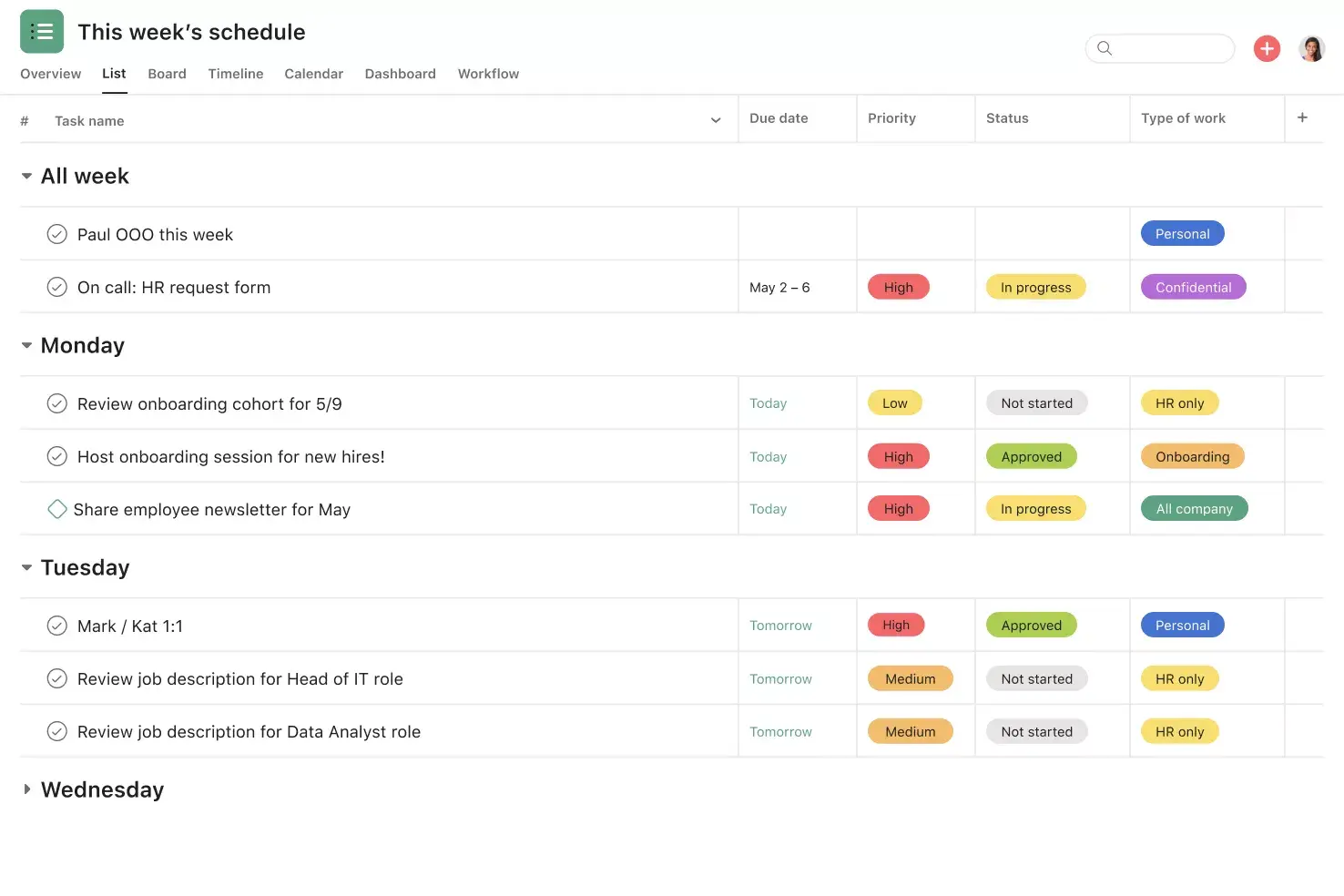
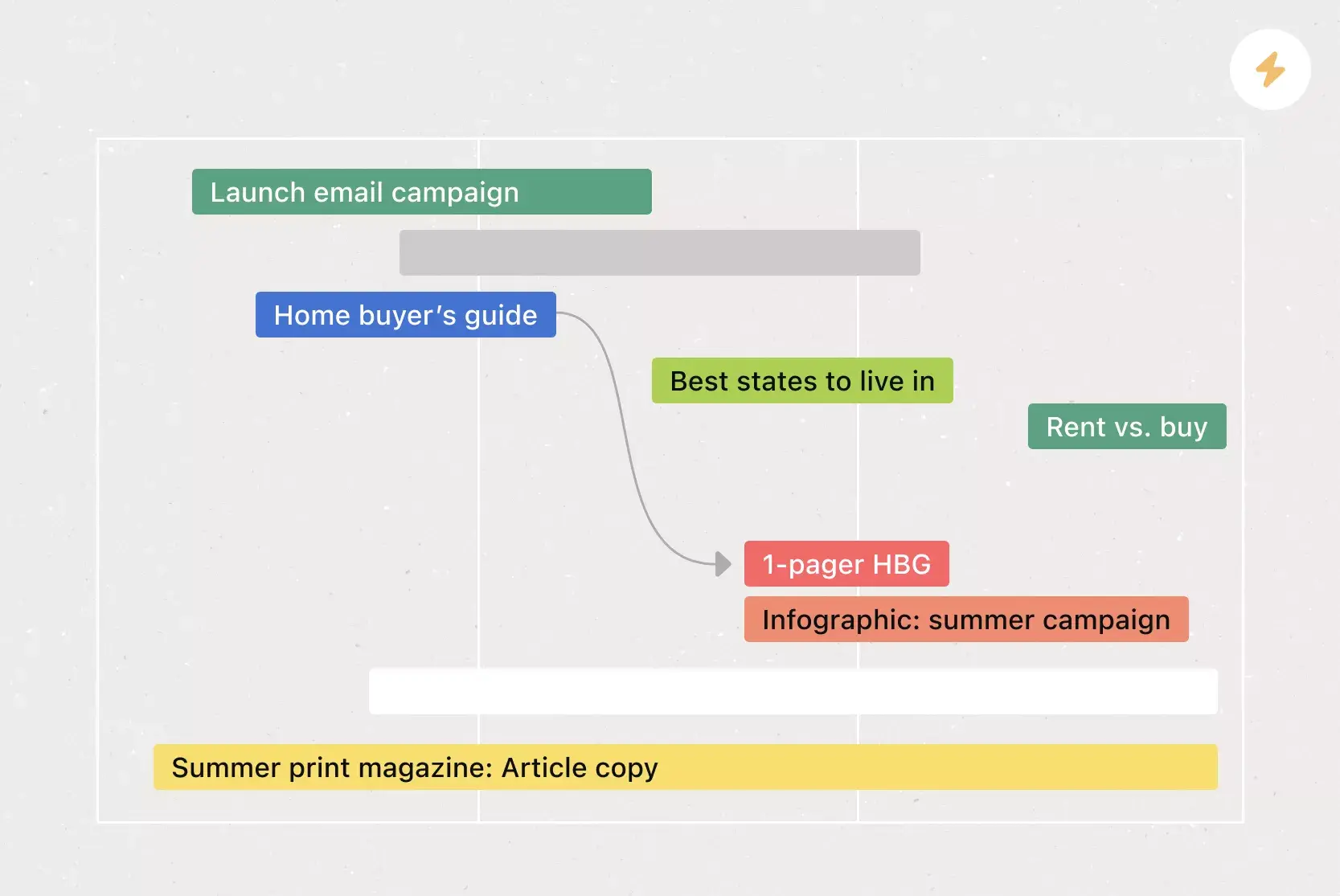
Get the template
Power up your editorial plans with Asana's free editorial calendar template.