


Email marketing calendar template
Use an email marketing calendar to plan sends, manage deadlines, and organize campaigns from start to finish.
Sign up to create your own template.
Email marketing calendar template
Use an email marketing calendar to plan sends, manage deadlines, and organize campaigns from start to finish.
Create your templateSign up to create your own template.
INTEGRATED FEATURES
Recommended apps




Summary
Timing matters, especially when it comes to marketing emails. When you send your emails, it can be just as important as the content itself. Send too soon, and you risk scaring away a potential customer; send too late, and you might miss an opportunity entirely.
That's why your email marketing strategy needs an organized schedule, especially when multiple teams are sending emails to the same audience. An email marketing calendar template gives you a reusable way to plan, coordinate, and track every send across the company. In this article, you'll learn what an email marketing calendar template is, what to include in one, how to create your own, and the best practices that keep campaigns running smoothly.
What is an email marketing calendar template?
An email marketing calendar template is a reusable planning tool that helps you organize, schedule, and coordinate upcoming marketing emails in one place. It gives every team that sends emails, from content marketing to product, a shared view of what's going out and when. This helps you avoid overlapping sends, spot scheduling conflicts early, and keep your messaging consistent across the company.
A template is especially valuable when multiple teams run their own campaigns. Here's why it matters:
Cross-team visibility: Anyone can view upcoming email campaigns across departments.
Consistent planning: Every team follows the same structure, regardless of campaign type.
Reduced spam risk: Coordinating topics, themes, and launch dates prevents customers from receiving too many emails at once.
For example, let's say you're an e-commerce company and you're planning promotional emails for a Black Friday sale. You can use a single email marketing calendar template to coordinate all Black Friday emails across teams, ensuring each email is timed correctly and your messaging is consistent.
Do you need an email marketing calendar template?
If your team sends marketing emails, you need an email marketing calendar template. Almost every digital marketing program uses email as part of its overall strategy, which makes a cohesive scheduling plan essential. A good template shows everyone in the company how to build and maintain their own email marketing calendars.
Standardized calendars are really useful when many people and teams are sending emails at once, all of which may have the same target audience. Even if you alter the type of content you send to different lists, without a calendar to reference, you run the risk of sending duplicate emails and spamming your customers. No one wants to receive three emails from the same company about the same topic. An email marketing calendar template encourages every team that sends out emails to build their own calendar, so you can quickly and easily know who's sending what, and when.
Once you build your template, use it to:
Standardize and streamline an email scheduling workflow: Build a step-by-step template so team members know exactly how to build their email marketing calendars.
Share the template with everyone responsible for sending emails to avoid overlapping themes or topics, which can feel like spamming your audience.
Structure a specific type of email campaign: Outline how to schedule these campaigns, such as creating a product-specific email marketing calendar template for new product launches.
Benefits of a digital email marketing calendar template
The tool you choose to build your template affects how flexible and useful it will be. Here's how a project management tool compares to a static spreadsheet:
Organize and schedule campaigns
Project management software: Yes
Spreadsheet: Yes
Bird’s-eye calendar view for stakeholders
Project management software: Yes
Spreadsheet: Limited
Store and track metrics
Project management software: Yes
Spreadsheet: Manual only
Automate workflows and connect teams
Project management software: Yes
Spreadsheet: No
Real-time updates on conversions and unsubscribes
Project management software: Yes
Spreadsheet: No
What to include in your email marketing calendar template
Alongside other marketing templates, such as a content calendar template or social media marketing template, your email marketing calendar template is another marketing tool in your kit. A successful email marketing calendar doesn't need to be complex, but it does need to work for your team. Here are some basic details to include:
Campaign: This is especially important if you want to link specific campaigns to broader marketing efforts. Consider using campaign management software to better organize tasks, timelines, and details in a single platform.
Assignee: Show who's responsible for each email, campaign, or task right on the calendar.
Important dates: Here, you can include due dates for tasks (e.g., when the email's written content is due) and the date you'll send each email.
Email list: If you have segmented email lists, show which one is receiving the email blast.
Content: If you want, you can include all your email content here, including subject lines, body copy, and landing pages. Or to keep the email calendar a bit cleaner, you can link out to content docs.
A/B testing: Review email performance by tracking A/B tests in your calendar.
Metrics: Keep tabs on delivery rates, open rates, click-through rates, and any other analytics important for your email reporting metrics.
Goals: List the specific marketing goal, business initiative, or content marketing strategy that each email contributes to.
How to create an email marketing calendar
Now that you know what to include, here's how to build your email marketing calendar step by step. Whether you're starting from scratch or using a template, these steps will help you set up a calendar your entire team can use.
Choose your tool. Decide where you'll build your calendar. Spreadsheets like Excel or Google Sheets work for basic scheduling, but project management software gives you more flexibility with built-in calendar views, automations, and collaboration features.
Set up your calendar fields. Using the details outlined above, create columns or custom fields for each element you want to track, such as campaign name, assignee, send date, email list, subject line, and metrics.
Add important dates and recurring campaigns. Start by mapping out key dates your email program needs to cover, like holidays, product launches, seasonal promotions, and company events. Then add any recurring campaigns, such as monthly newsletters or weekly digests.
Assign team responsibilities. For each email or campaign, assign a team member responsible for drafting, reviewing, and sending it. Ownership keeps your calendar moving forward and ensures nothing falls through the cracks.
Share with stakeholders and set permissions. Make your calendar visible to everyone who sends emails, whether that's your marketing, product, or social media team. This gives everyone a shared view of what's going out and when, so you can avoid overlapping sends.
Once your calendar is set up, save it as a template so other teams can replicate the same structure for their own campaigns.
Best practices for your email marketing calendar
Building your calendar is just the first step. To get the most out of it, follow these best practices:
Only add scheduled campaigns to your calendar. Since automated emails (like welcome sequences or abandoned cart reminders) are triggered by specific customer actions, there's no need to include them on the calendar. Keeping them separate helps you focus on the sends you can plan and control.
Maintain a consistent sending cadence. Your audience will come to expect emails from you at a certain frequency. Whether that's weekly, biweekly, or monthly, stick to a rhythm that keeps your brand top of mind without overwhelming your subscribers.
Review and update your calendar regularly. Set a recurring time, whether weekly or biweekly, to review upcoming sends, confirm content is ready, and adjust dates as priorities shift. A stale calendar is just as risky as no calendar at all.
Leave room for timely opportunities. While planning ahead is important, your calendar should have enough flexibility to accommodate last-minute campaigns, like a flash sale or a response to industry news.
Track performance to improve future sends. Use the metrics fields in your calendar to record open rates, click-through rates, and conversions after each send. Over time, this data helps you identify what's working and refine your approach.
Integrated features
Calendar View. See all upcoming and past work in a calendar format, with clear visibility into due dates and the overall cadence of your scheduled campaigns. Click into any task to view custom fields, dependencies, and subtasks.
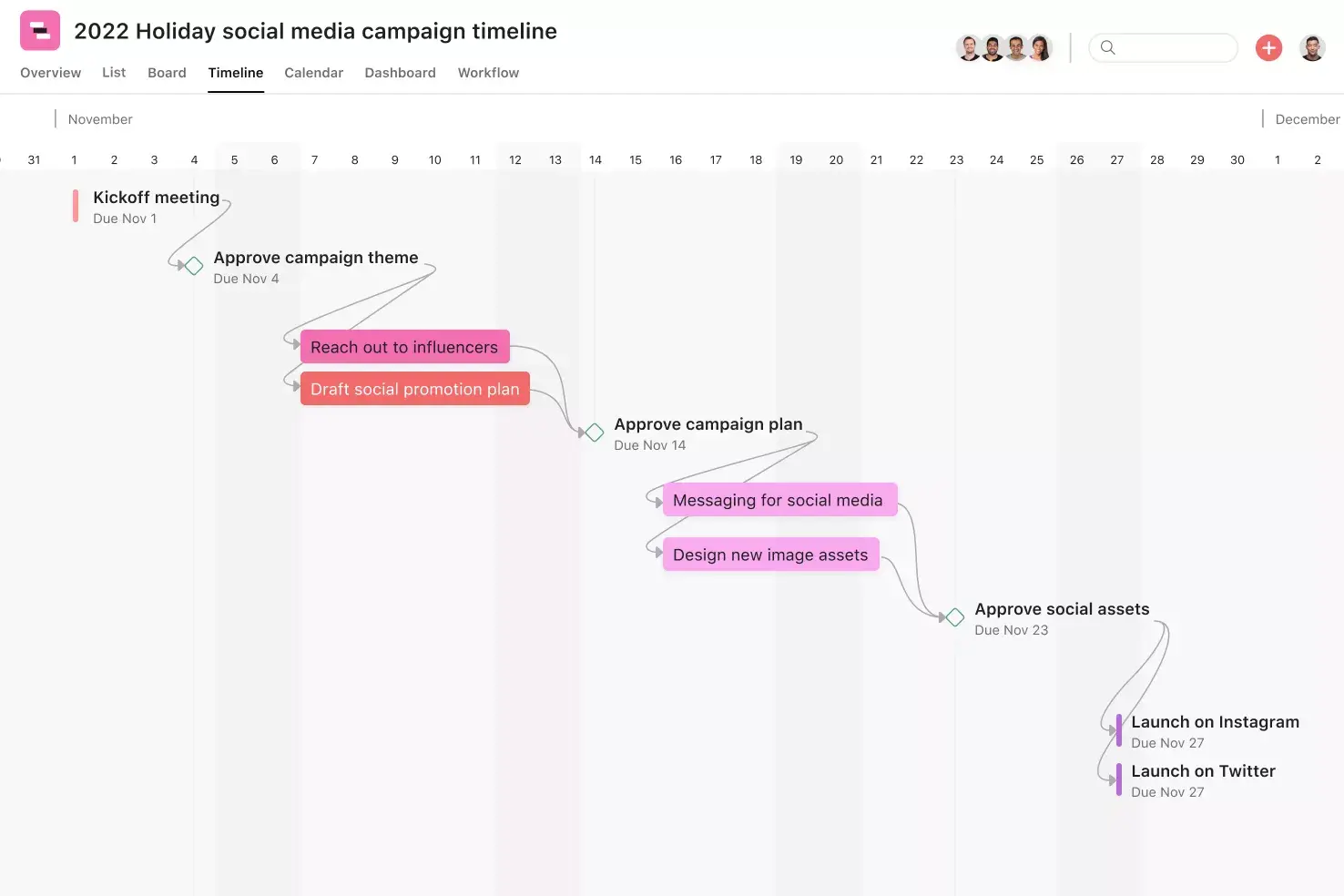
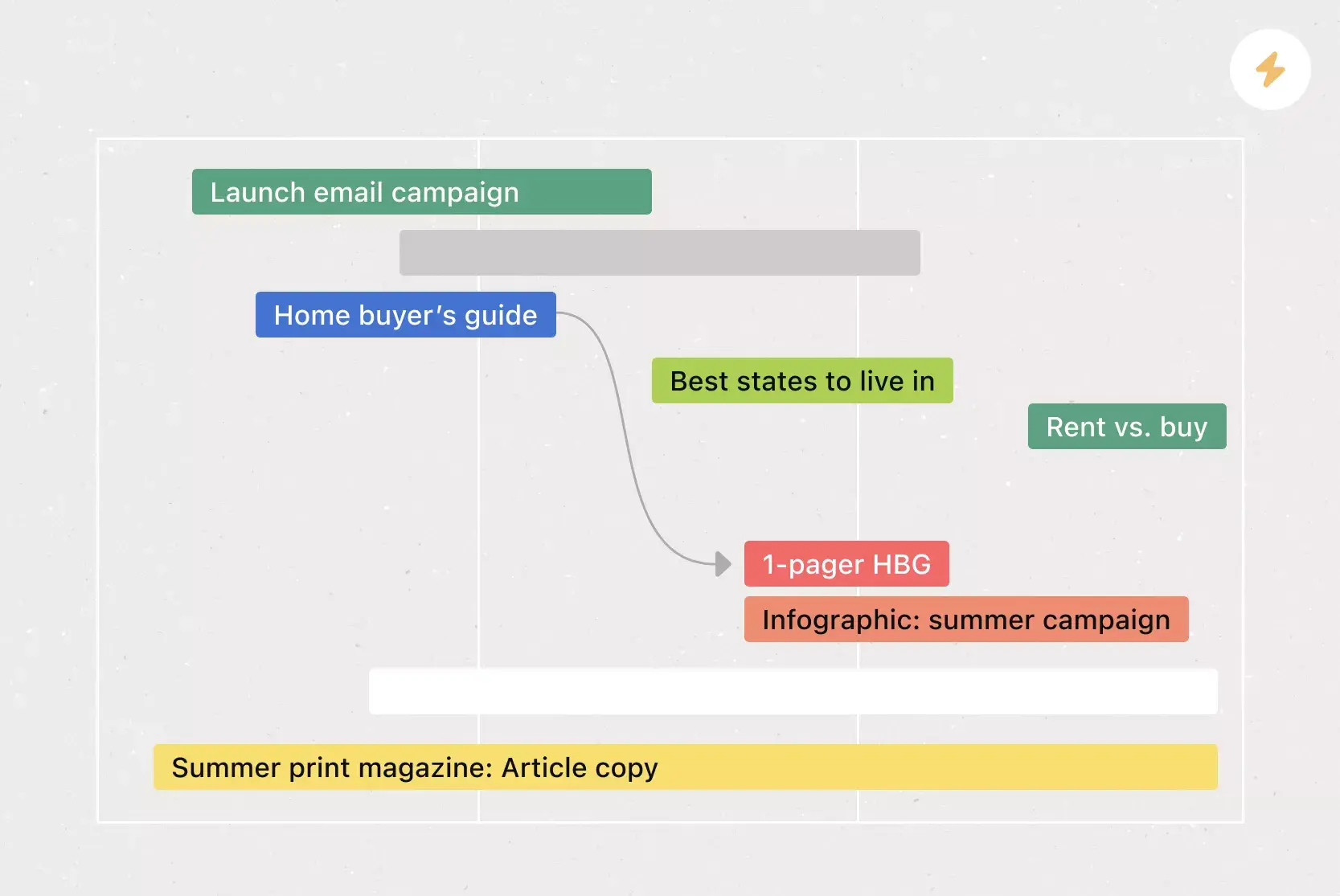
Timeline View. View all your tasks in a Gantt-style horizontal bar chart that shows start and end dates, and task dependencies. Spot dependency conflicts early to keep your email campaigns on schedule.
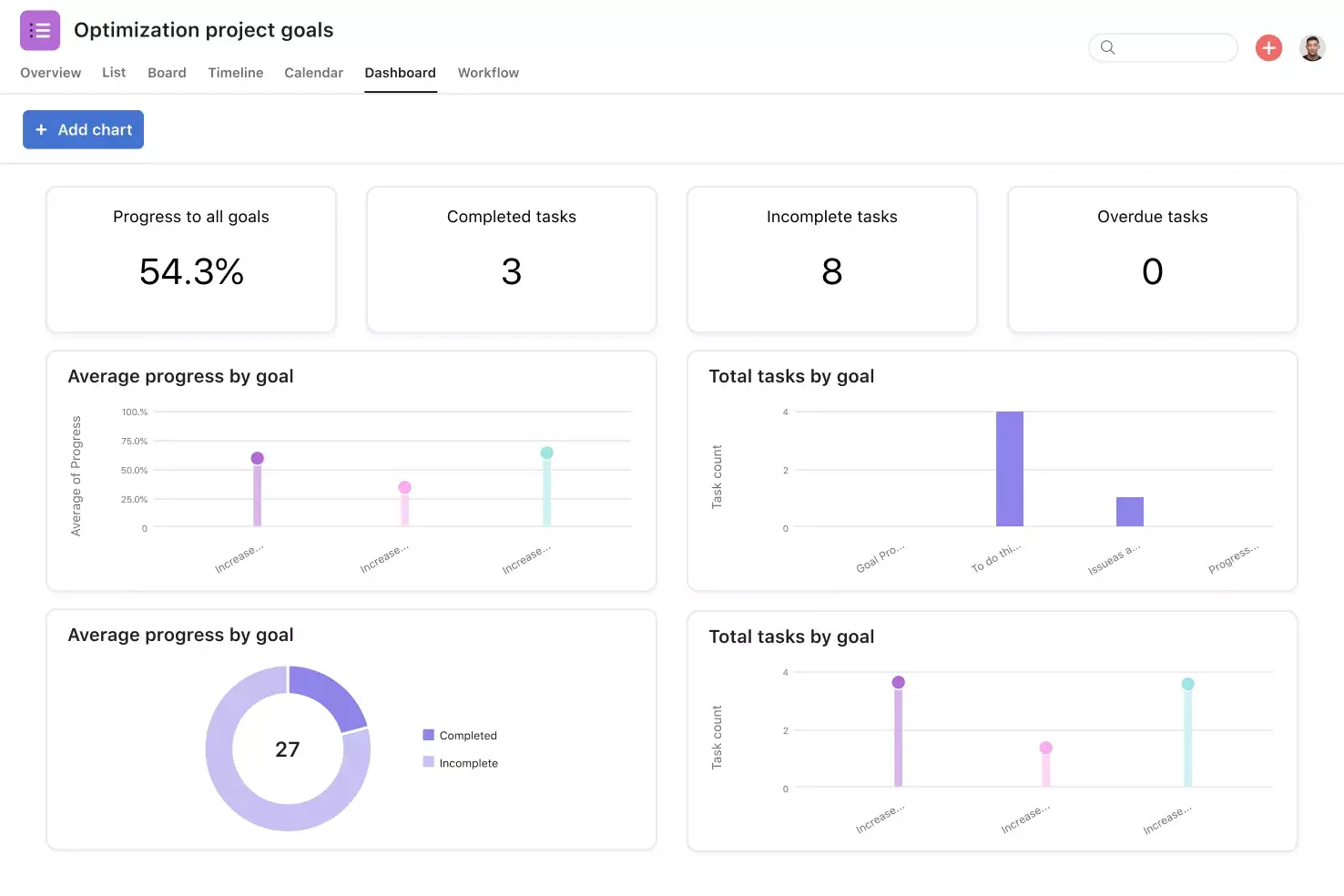
Goals. Connect your email campaigns directly to the team and company goals they support. This gives team members real-time clarity into how their work contributes to the broader marketing strategy, so they can prioritize the sends that matter most.
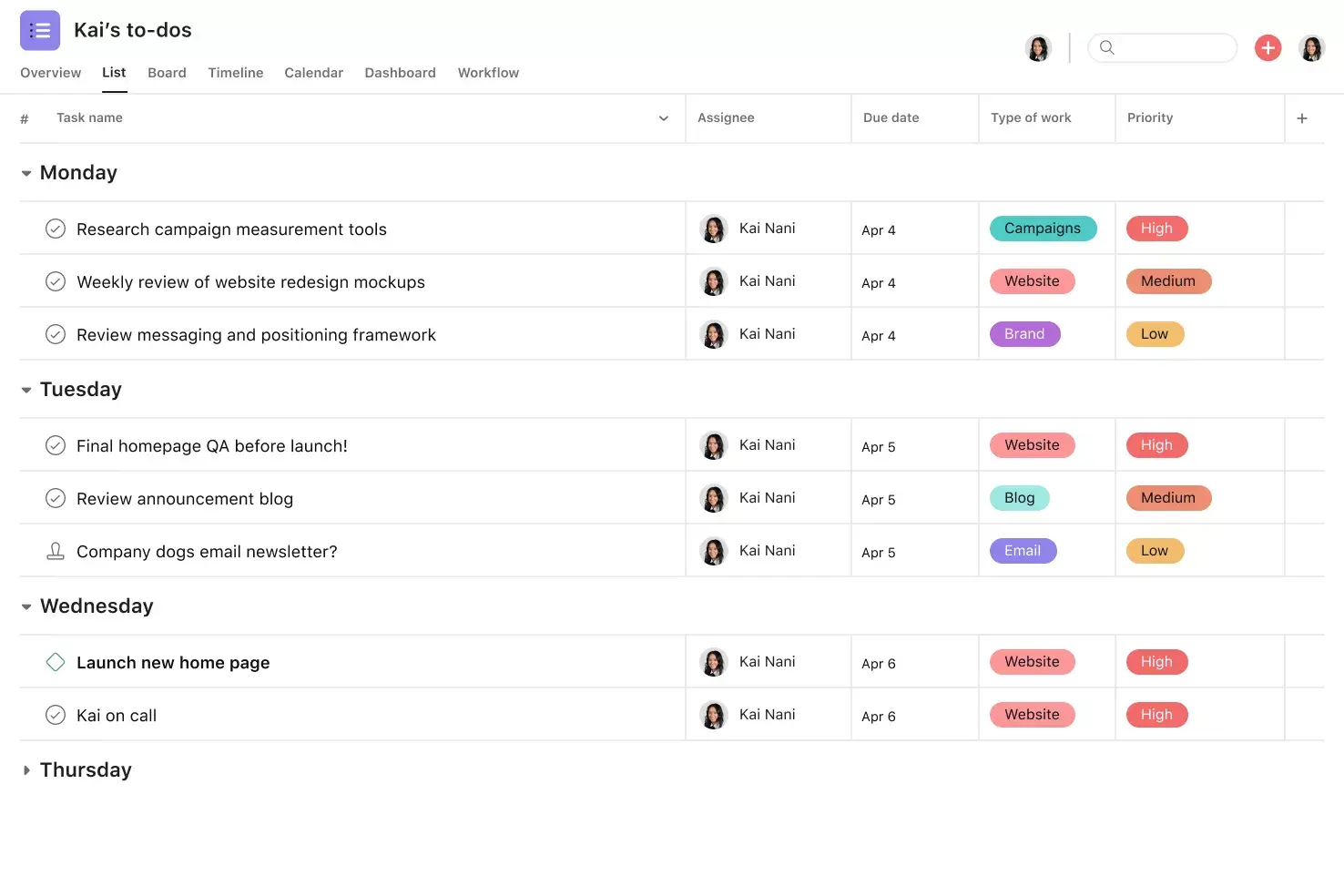
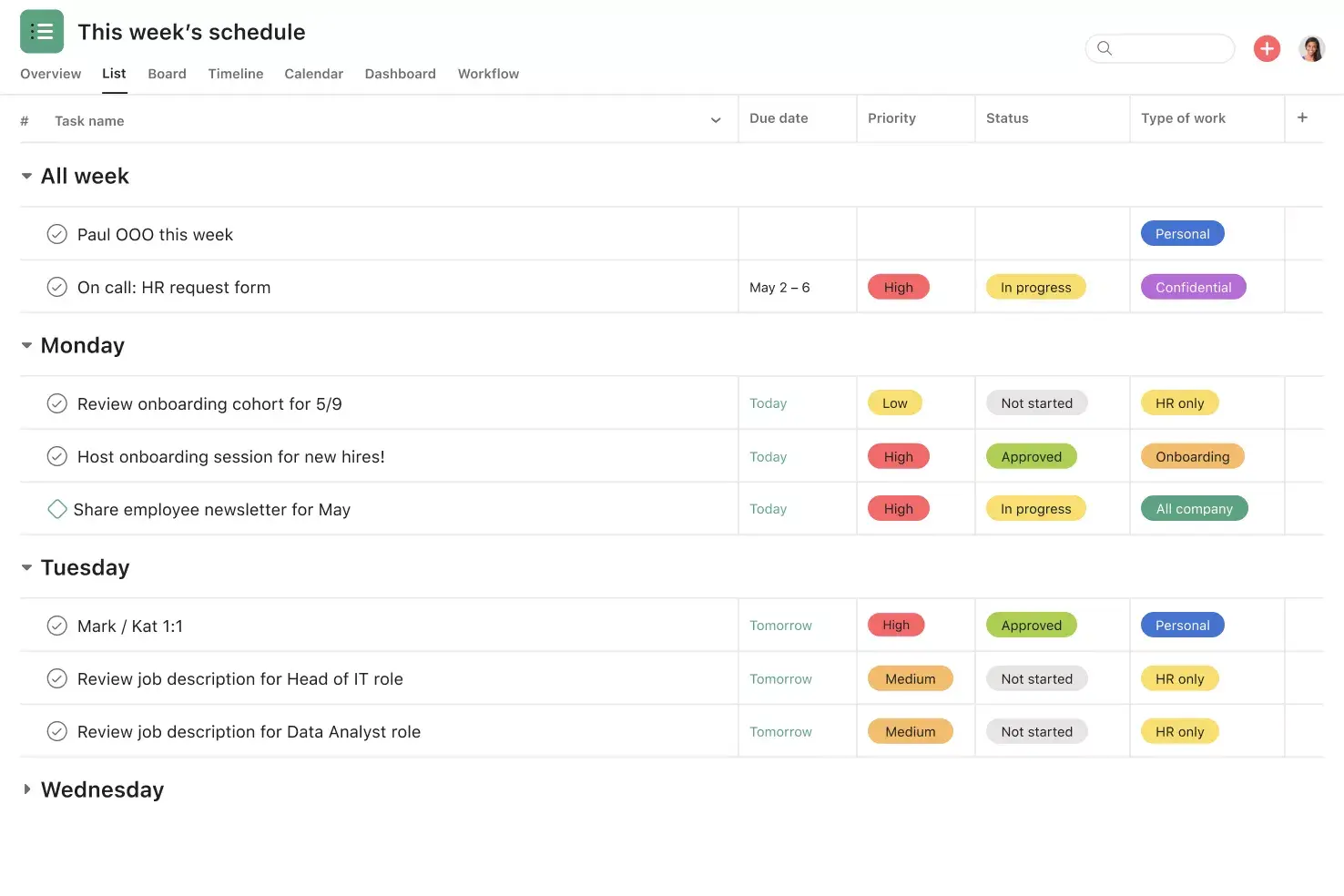
List View. See all your project information at a glance in a grid view, including task titles, due dates, and custom fields such as Priority and Status. Give your entire team visibility into who's doing what by when.
Recommended apps
Google Workplace. Attach files directly to tasks in Asana using the Google Workspace file picker, built into the Asana task pane. Easily attach any My Drive file with just a few clicks.
Salesforce. Enable sales and customer success teams to communicate directly with marketing in Asana. Share attachments and create trackable tasks to keep your email campaigns aligned with customer data.
Gmail. Create Asana tasks directly from your Gmail inbox, complete with the context from your email. You can also search for and reference existing Asana tasks without leaving Gmail.
Outlook. As action items come in via email, like reviewing work from your agency or a request for design assets from a partner, you can now create tasks for them in Asana right from Outlook. You can then assign the new task to yourself or a teammate, set a due date, and add it to a project so it's connected to other relevant work.
Plan your email campaigns with Asana
A well-organized email marketing calendar keeps your campaigns on schedule and your teams aligned. With Asana, you can build a shared calendar that gives every team visibility into upcoming sends, assign ownership for each campaign, and track progress in real time. Instead of juggling spreadsheets or chasing down updates across tools, you can manage your entire email marketing workflow in one place.
Ready to bring structure to your email campaigns? Get started with Asana and use your free email marketing calendar template to keep every send organized and on track.
FAQs about email marketing calendars
An email marketing calendar template is a reusable calendar that helps you organize and schedule upcoming marketing emails across teams. It gives everyone company-wide visibility into what's being sent and when, so you can coordinate campaigns for greater impact.
Choose a tool with built-in calendar features, like project management software, and set up fields for campaign names, send dates, assignees, and metrics. Save that structure as a reusable template so any team can replicate it for their own campaigns.
A template makes it easy for every team to adopt the same scheduling process, which gives the entire company visibility into upcoming sends. This prevents duplicate emails and helps you coordinate campaigns for a better customer experience.
Asana offers templates for a wide range of marketing workflows, including social media calendars, marketing plans, editorial calendars, campaign trackers, and podcast planning. You can explore all available marketing templates in the Asana template library.
Related templates
![[Templates] Social Media Calendar (Card)](https://assets.asana.biz/transform/3d20dd82-f67c-47be-a595-0d0019ee7e98/Social-media-calendar-m?io=transform:fill,width:2560&format=webp)
![[Templates] Editorial Calendar (Card image)](https://assets.asana.biz/transform/5fac5de2-17f6-4d69-8cd3-091a887a24bd/TG23-web-thumbnail-042-editorial-resource-management-static-2x?io=transform:fill,width:2560&format=webp)
![[Templates] Creative Asset Feedback and Approval (card image)](https://assets.asana.biz/transform/c768a28c-822f-420f-93f9-f2eea4c93780/TG23-web-thumbnail-032-bill-of-materials-static-2x?io=transform:fill,width:2560&format=webp)
![[Templates] Agency Collaboration (card image)](https://assets.asana.biz/transform/f289a866-6162-4b01-9f42-13fdb9147144/TG23-web-hero-047-implementation-plan-thumbnail-2x?io=transform:fill,width:2560&format=webp)
![[Templates] Campaign management plan template banner image](https://assets.asana.biz/transform/d0762c4d-c7d8-49bc-823b-4b93513e6b48/Template_CampaignMgmt_Thumb?io=transform:fill,width:2560&format=webp)
![[Templates] Creative Requests (Card image)](https://assets.asana.biz/transform/963f258c-f2d0-4281-a9ff-b2244ee2e670/Template_CreativeReq_Thumb?io=transform:fill,width:2560&format=webp)
Create templates with Asana
Learn how to create a customizable template in Asana. Get started today.