


Safeguard your business
Implement protective guidelines for every user and team.
Scale permissions
Manage work access and maintain control as your organization grows.
Get work done securely
Protect your data and boost productivity all at once.
Protect your business with org-wide permissions
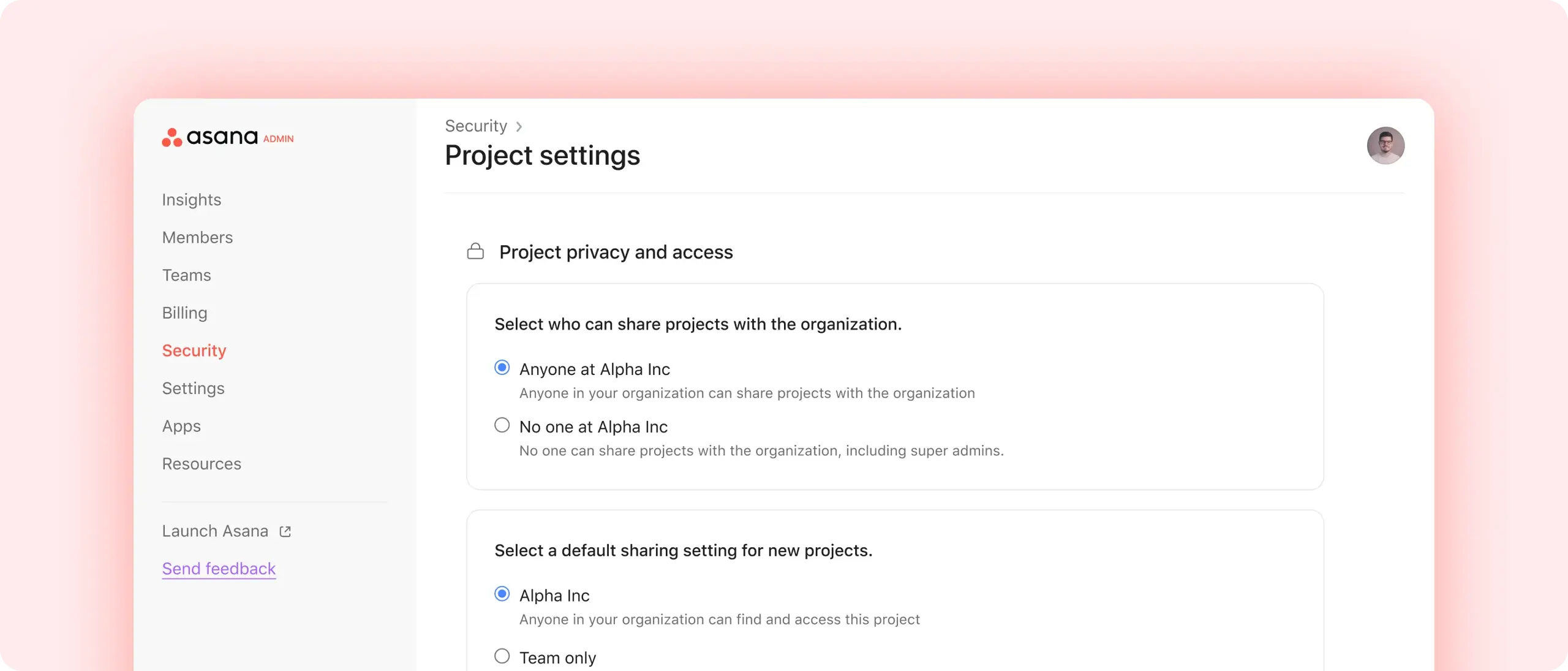
Customize data sharing
Match your organization’s privacy needs with advanced controls.
Establish best practices
Set default permissions for sharing work across your organization.
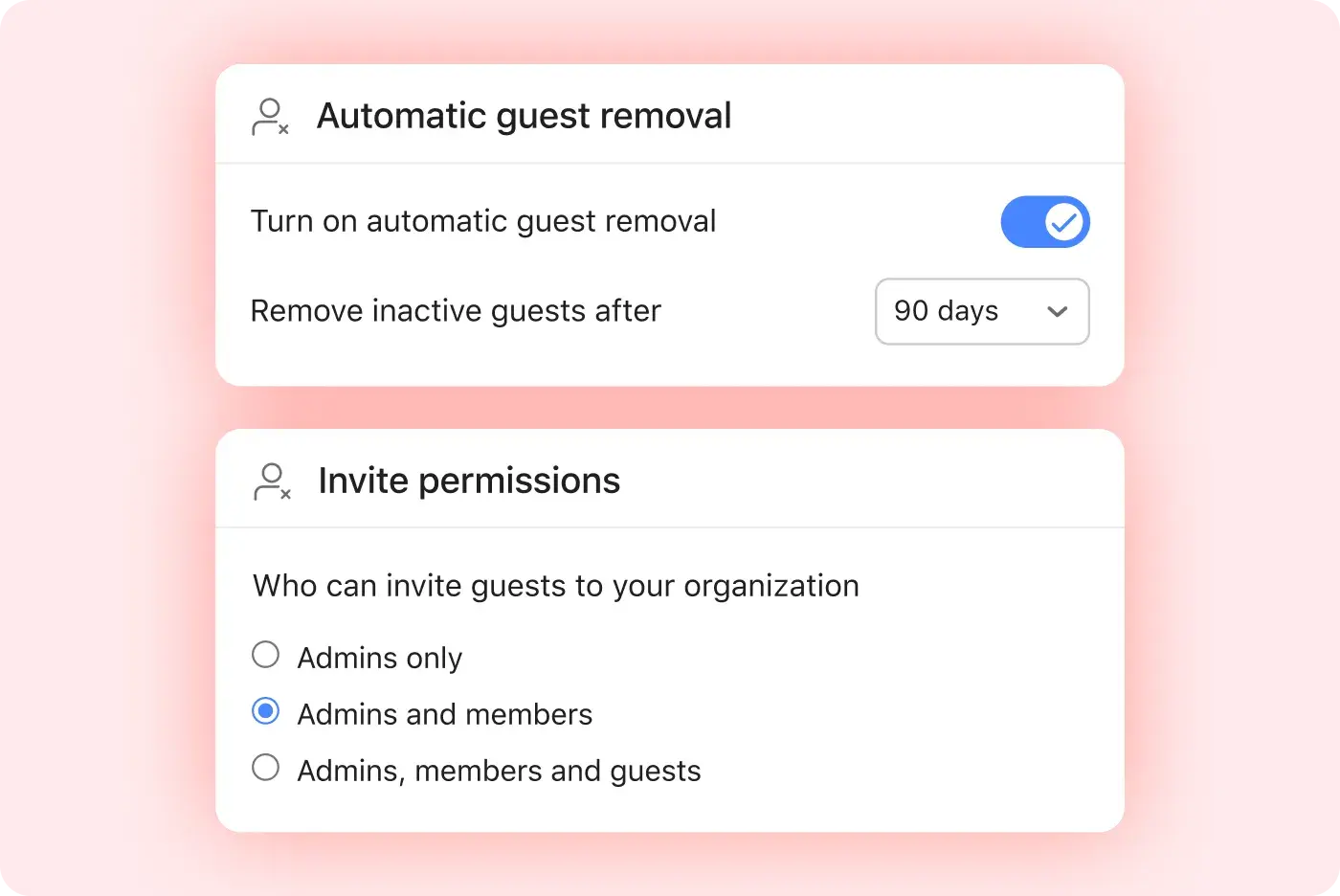
Manage guest access
Implement advanced security measures for guest users.

Maintain data and compliance controls
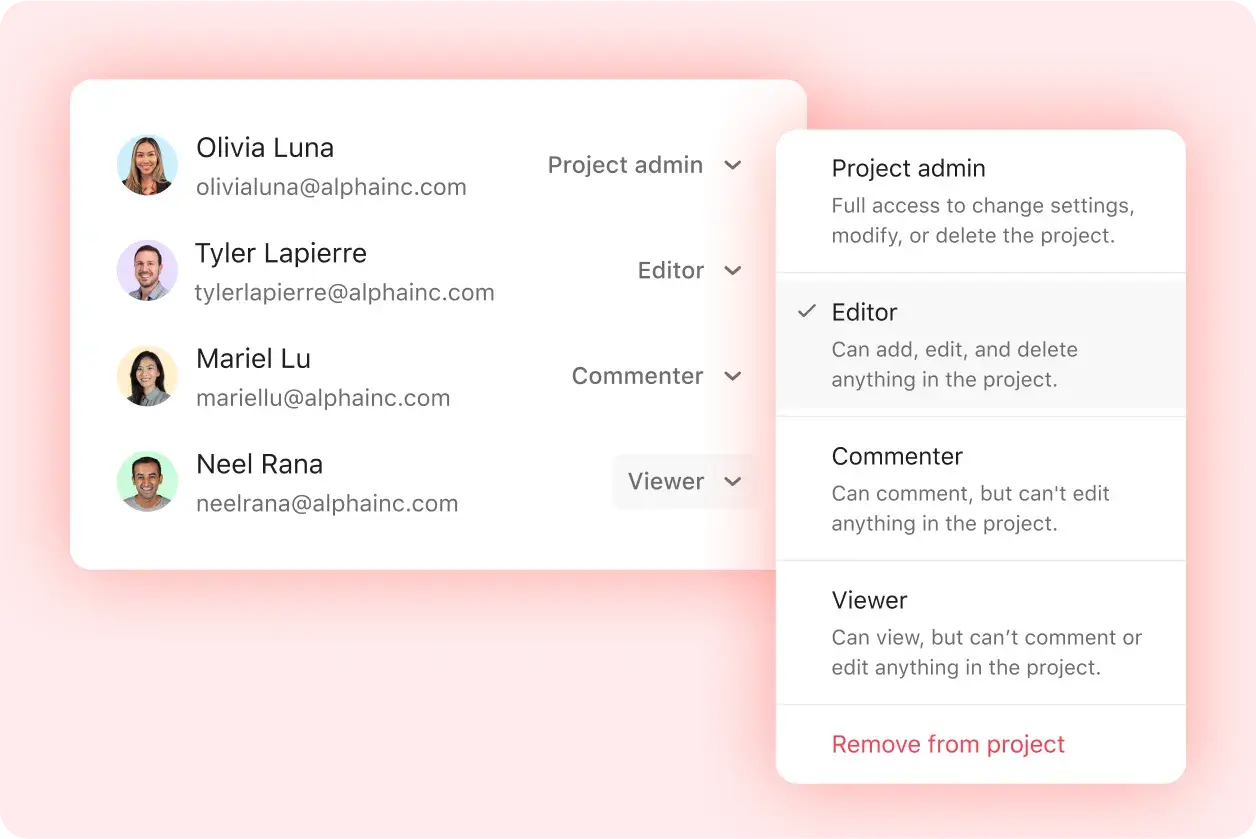
Customize access
Choose who can see and use each project across the company.
Standardize data
Control access to project data for more accurate reporting.
Scale permissions across the org
Adjust team permissions, membership, and share settings easily.

Secure your organization
Asana provides data security, privacy controls, and peace of mind. Review these resources to learn more.
Still have questions? We have answers.
Asana has user roles and object access levels that create a customized and secure experience for users.
User roles include super admin, admin, member, and guest. Access levels for goals include editor and viewer. Project access levels include admin, editor, commenter, and viewer.
Super admins can govern permissions and defaults that are implemented organization-wide. It’s also easy for users to share critical work including projects and goals with their colleagues by sharing directly with teams.
Guests in Asana have restricted access and visibility. Certain plans enable you to set controls on who is allowed to invite guests into the organization.
Learn to manage your organization's Asana account and customize settings to set your organization up for success with the Asana for admins course.
The user roles available in Asana include Super Admins, Admins, Members, and Guests roles with varying levels of access and control.
The object-level permissions that exist in Asana include projects that can be set to Admin, Editor, Commenter, or Viewer, and goals that can be Editor or Viewer. These levels determine what users can see and do.
To customize data sharing organization-wide, admins can set default sharing permissions, restrict public links, and control who sees or shares projects and reports.
Guest access works by providing guests with restricted visibility and action permissions. Admins can limit who can invite guests and manage their access scope.
Super Admins can enforce consistent permissions at scale by setting and governing permission defaults across the organization and adjusting membership and sharing for teams and projects.
The mobile permissions that admins can enforce include controlling mobile settings like biometric login, disabling screenshots and copy-paste, restricting attachments, and integrating with Intune.
Project-level Editor permissions differ from Admin permissions in that Editor-level users can add content but cannot change project structure, rename, delete, or adjust settings, while Admin users have full control.
Transform the way you work with Asana
Start your free trial
Try Asana for free. No credit card required.
Watch the demo
See how Asana connects companies at scale.
Speak with a sales rep
Learn how Asana helps teams collaborate seamlessly.